


Key Takeaways:
- Create a YouTube poll in Posts, where viewers can choose from the options you offer.
- To understand how to make a poll on YouTube Live, use the Create a poll option in Live Chat during a live stream or Premiere.
- If you’re wondering how to create a poll on a YouTube post, tap Create post and then tap the poll icon.
- YouTube polls let creators pose specific questions and garner direct feedback.
- You can add polls only if your channel has access to Posts and isn’t affected by YouTube’s restrictions.
- YouTube currently says Posts aren’t available for channels designated as Made for Kids or supervised accounts.
Add a poll through a YouTube post by entering a question and answer options, then publishing it for viewers to vote on. To create a poll on YouTube Live, you can do so through live chat. Creators can also use a poll on a YouTube post to gather feedback and understand audience preferences.
Are you a YouTuber wondering how to create a poll on YouTube? Polls on YouTube are a great way to boost engagement. To make a poll on YouTube, create a post from your channel, select the poll option, enter your question and answer choices, and publish it for viewers to vote. You can also create polls during eligible YouTube Live streams through live chat. They not only help with audience retention, but also give you ideas when you run out of content for your channel niche. Since we are here to help, we’ll show you simple steps to start a poll on YouTube! They can also increase your comments. So, let’s get started without delay!
What Is a Poll on YouTube?
If you have used a YouTube community post as a creator, you might have used the poll feature. A YouTube poll lets creators ask a single question with multiple-choice answers. Polls can be embedded in YouTube Posts and are also available in Live Chat during live streams. The option that gets the most votes is your answer. Through YouTube polls, creators can see what their audience wants to watch and create videos that drive the most engagement.
Eligibility Criteria for YouTube Polls
The current YouTube documentation doesn’t mention a universal 500-subscriber rule to create polls. Depending on whether your channel has access to Posts and whether any channel restrictions apply, your access level will vary. Posts aren’t available for supervised accounts or channels set as Made for Kids.
- Subscriber Count: You need at least 500 subscribers.
- Strikes & Violations: Your channel should comply with YouTube’s guidelines. If YouTube has issued a strike on your channel, you might not be able to use the polls feature for a while.
- Active Channel: It is given that YouTube prefers regular engagement and uploads, so it’s best to have a consistently active channel
Steps On How To Make A Poll On YouTube
You have come to the right place if you are running a business and want to make a poll on a YouTube channel. These polls are a marvellous way to know what your customers want and act accordingly. Ultimately, our goal is to increase your watch time and engagement on YouTube. Follow our lead as we share the perfect recipe.
1. Open YouTube on desktop, go to your profile, and head to Create post at the top.
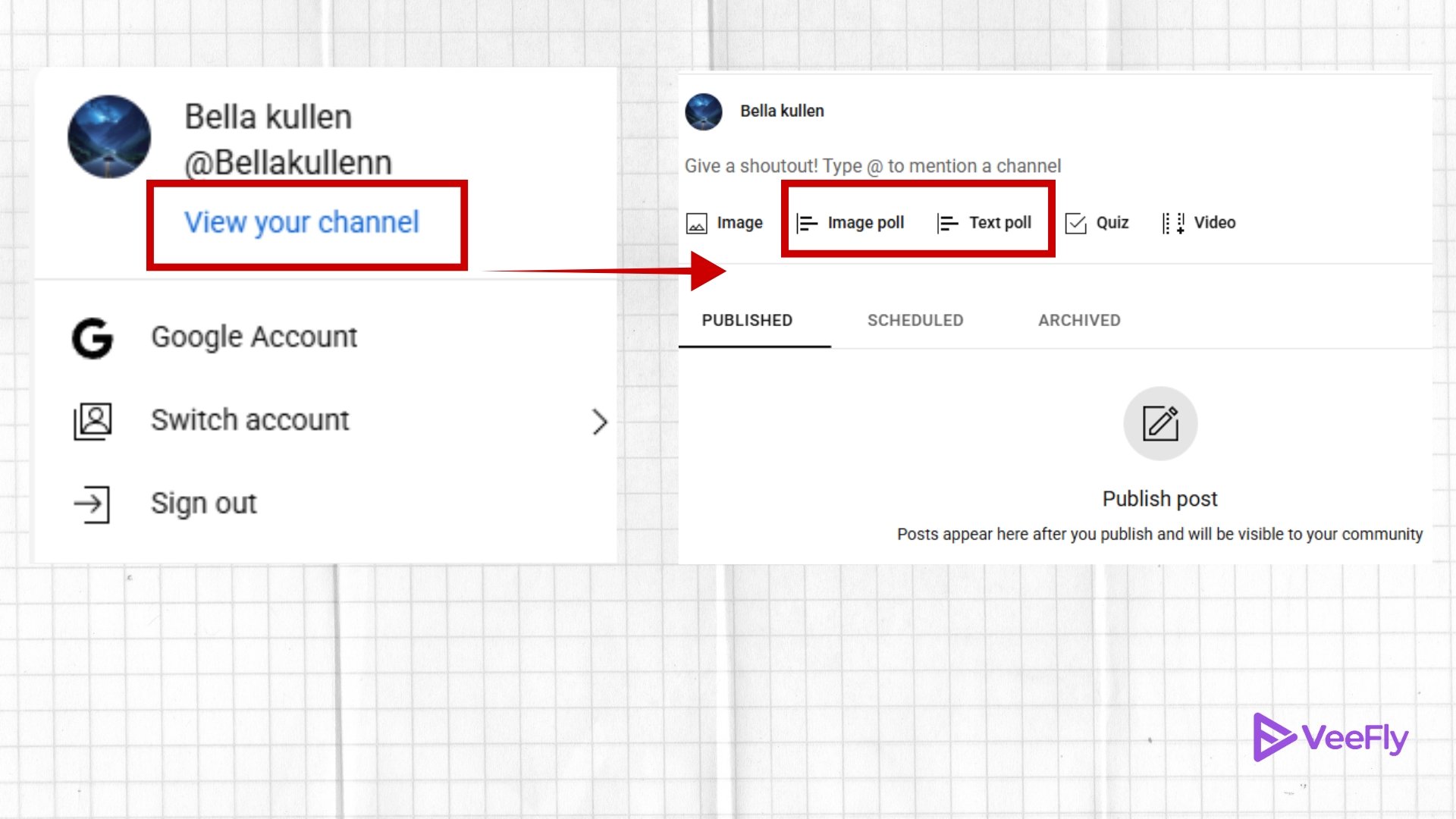
2. Choose the post type.
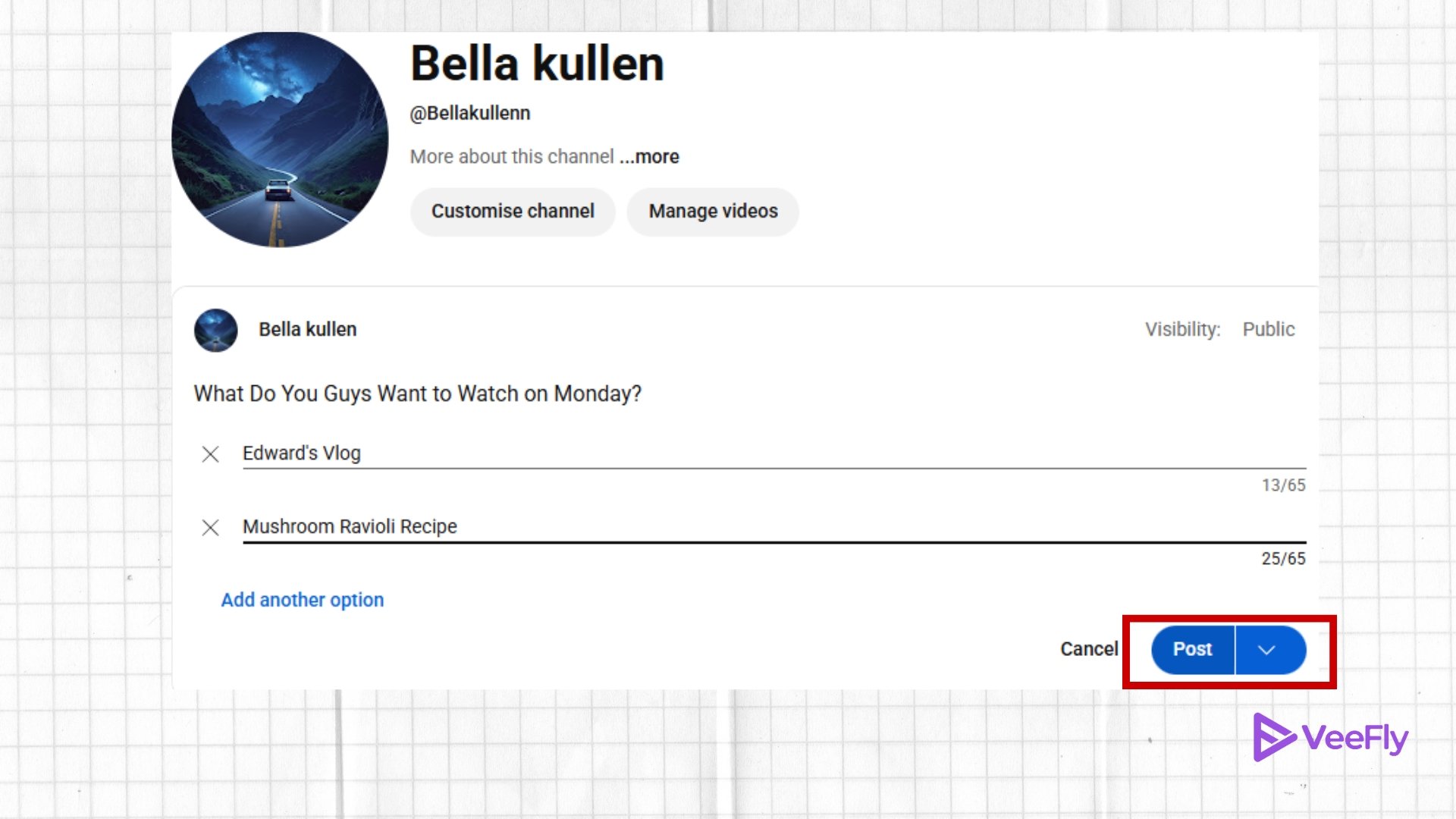
3. Add a question and options for your viewers to vote.
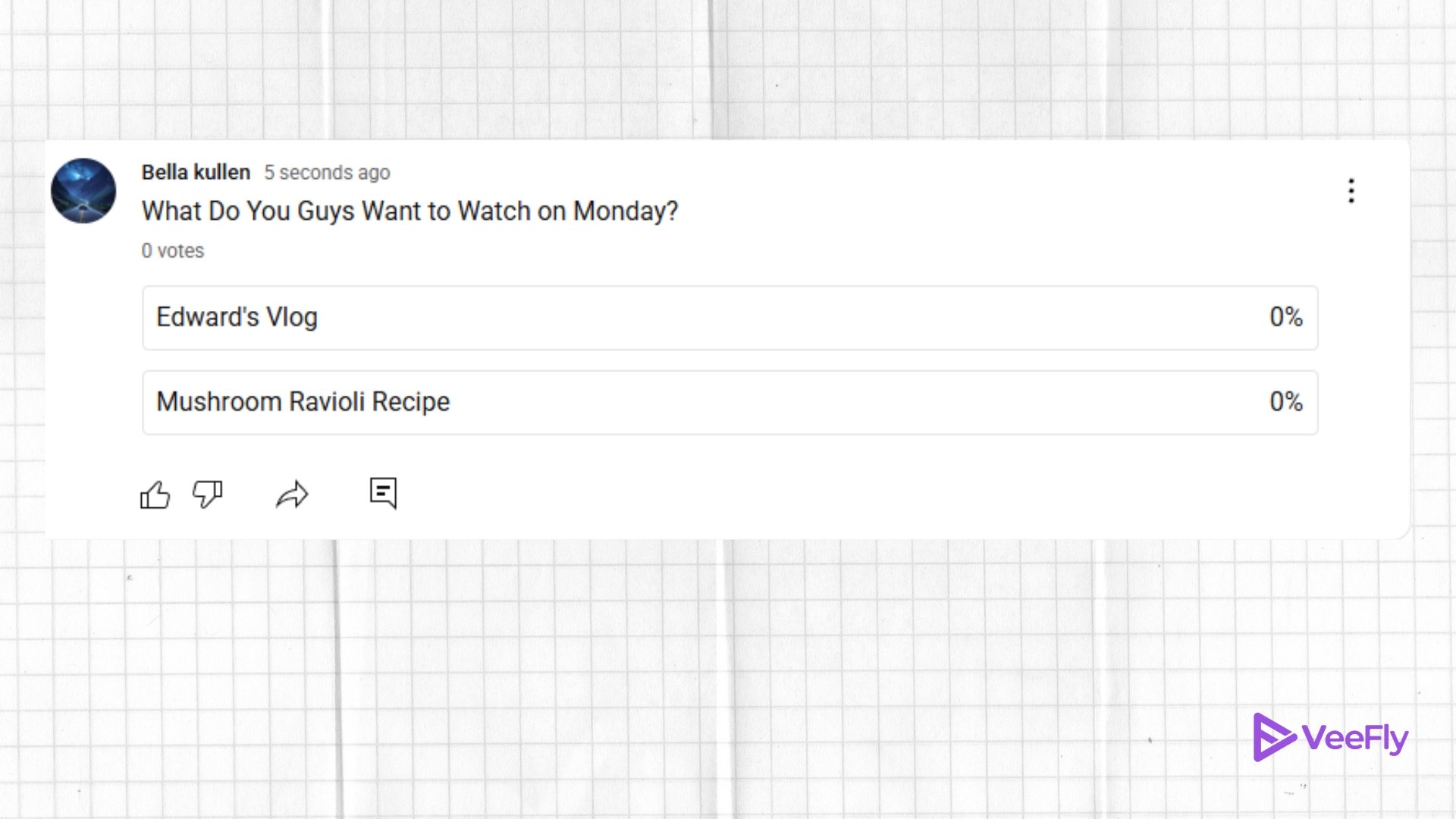
4. Once you are done, click on the ‘Post’ button.
How To Make A Poll On YouTube On A Mobile App?
Creating a poll on YouTube mobile is similar to the desktop version, but with a few interface changes. Here’s how to make a poll on YouTube mobile:
1. Open your YouTube application on mobile.
2. Go to the profile icon and then navigate to View channel.
3. Go to the ‘Post’ tab and tap on ‘Post an update to your fans’
4. Now type out the question you must ask your audience and click on the poll icon in the bottom left.
5. Now tap on the text option in the bottom right to give options as text. You can also choose an image to use for the options.
6. Once you are done, hit the ‘Post’ button.
How To Make a Poll on YouTube Live?
To create a live poll, schedule live streaming, or Premiere. In the Live chat window, click Create a poll, type your question and options, then publish it. You can end the poll from the banner at the top of the chat.
| Poll type | Where you create it | Best suited for |
| Post poll | YouTube Posts | Audience opinions and content preferences |
| Live poll | Live Chat | Real-time viewer responses |
| Live poll sticker | YouTube mobile live stream | Interactive on-screen questions |
YouTube says live polls can have between two and four options and can be launched during live streams and Premieres. Live polls don’t appear in live chat replays.
Why Should You Create a Poll on YouTube?
YouTube polls can give creators a simple way to ask their audience for opinions and preferences. YouTube itself recommends using polls to ask viewers what type of video they want to see next.
“The algorithm doesn’t and never did push videos for creators but has always focused on recommending videos for viewers.”
— Rene Ritchie, Creator Liaison, YouTube
Receive Feedback For Your YT Content
First, you can get feedback on your videos. Ask viewers what topic, format, or subject they want you to do next. Their answers can help you decide between content ideas to create.
Increase Engagement
Polls give viewers an easy way to participate, which can boost engagement on your channel and content. Your viewers are more likely to wait for your content to be live and watch it immediately.
Understand Your Audience Preference
Poll answers can also tell you right away which topics and formats your audience prefers, giving you another tool to plan your next videos. So, next time you think of YouTube content ideas, you will have a clearer image of what can benefit your channel. You can also use YouTube AI inspirational tools to find new video ideas.
Final Thoughts
When you know how to make a poll on YouTube, you can turn the opinions of the audience into some great content ideas. Use Posts for questions that can keep gathering answers over time, or Live Chat polls for instant feedback during a livestream. Then, with VeeFly’s creator tools, combine your audience’s answer data with your broader YouTube performance analytics and integrate both into your wider channel growth workflow.
Frequently Asked Questions
Q1. Why am I unable to create and post a poll on YouTube?
Your channel may not have access to Posts, or a channel restriction may apply. YouTube states that Posts are unavailable for supervised accounts and channels set as Made for Kids.
Q2. How can I create a live poll on YouTube?
Start a live stream or Premiere, open Live Chat, click on Create a poll, enter your question and options, and post it. You can choose End poll to stop the poll.
Q3. How can I add a poll to a YouTube short?
YouTube adds poll stickers to help creators increase video engagement. So, now when you create a YT short, you get the built-in poll feature in the editing tools.
Q4. Can you add a poll in the YT comments?
No. You cannot directly add a poll in the YouTube comments. YouTube’s poll feature is available in Posts and Live Chat, not in general video comments.
Q5. How do I add a poll in a YouTube community post?
To add a poll in a YouTube community post, click on the channel profile and head over to the community post. Create a post and select the poll option. Don’t forget to publish it for your audience.
