


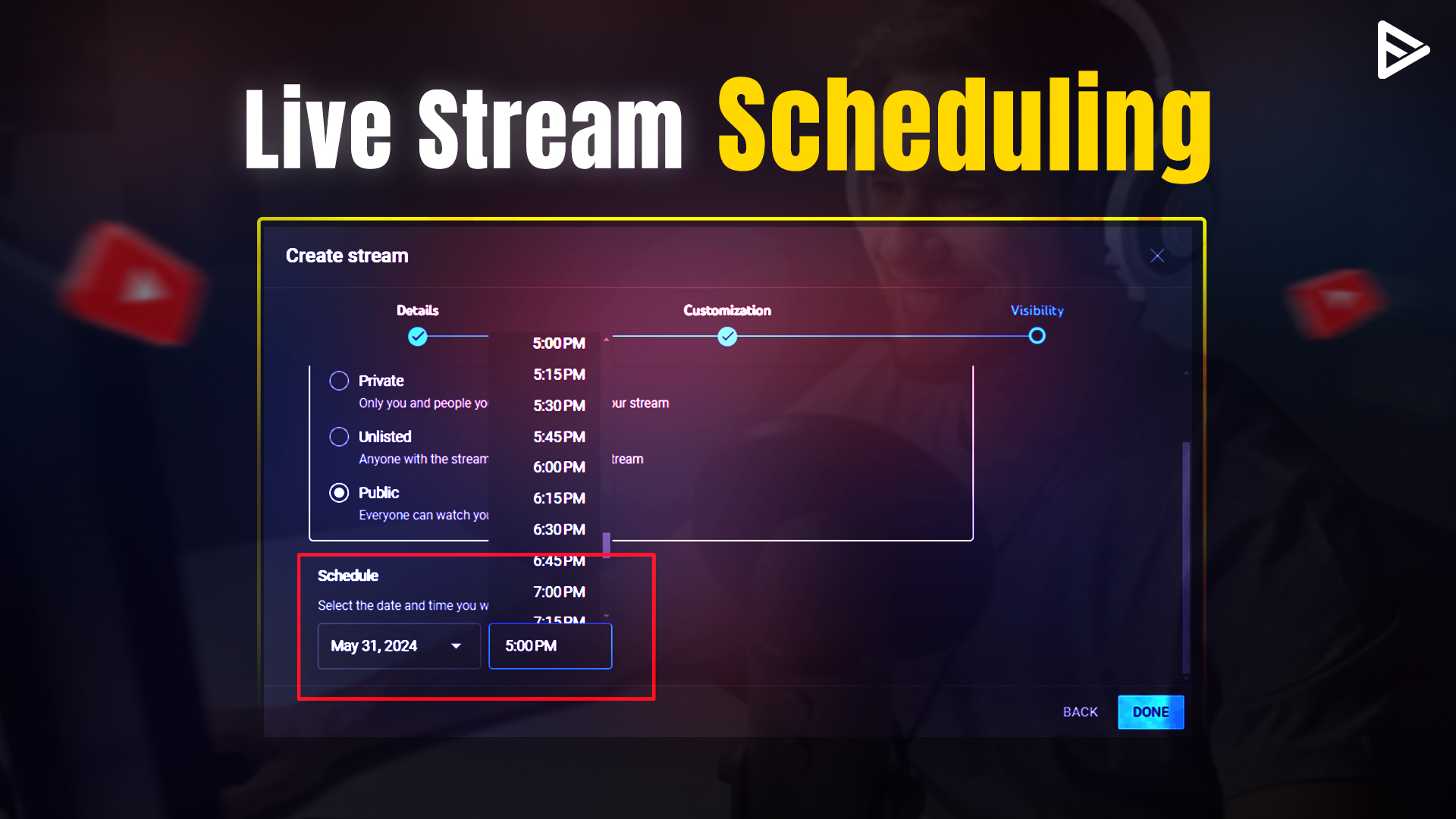
Key Takeaways:
- To schedule a YouTube live stream, you need a verified account and phone number.
- Sign in to your account and find the Create icon. The next tab is Go Live, where you can choose Manage, then schedule your stream. Some additional steps are needed to complete the process.
- Scheduling a YouTube livestream lets subscribers and potential viewers know you’re going live, which can bring in more views automatically.
- The eligibility criteria cover the age limit, device requirements, and other factors every creator should note.
Knowing how to schedule a YouTube livestream helps you keep your audience updated in advance. You should have a verified account with a phone number, then sign in to YouTube and go to Go Live (under Create), where you can choose Manage and Schedule Stream. This will give you maximum viewership and engagement when you ultimately go live on YouTube.
Why Schedule a YouTube Live Stream?
Scheduling a YouTube livestream in advance keeps subscribers and potential viewers informed about when you’ll go live. Plus, viewers will see a video on your channel under the “Upcoming Livestreams” section with the scheduled date and time. This approach helps ensure your viewers get constant reminders and don’t miss out on the scheduled live stream on your YouTube channel.
Do I Need Anything Before I Schedule a YouTube Live?
Before we dive into the technical steps for scheduling a livestream on YouTube, let’s cover what you need to stream live. To schedule a live stream on YT, you need to first enable live streaming on your channel. YT can take up to 24-48 hours to process this request, but it’s usually faster. Once approved, your YouTube channel is all set to schedule a livestream in advance.
How to Schedule a Livestream on YouTube?
To schedule a livestream on YouTube, you need a verified account with a phone number. Follow these easy steps:
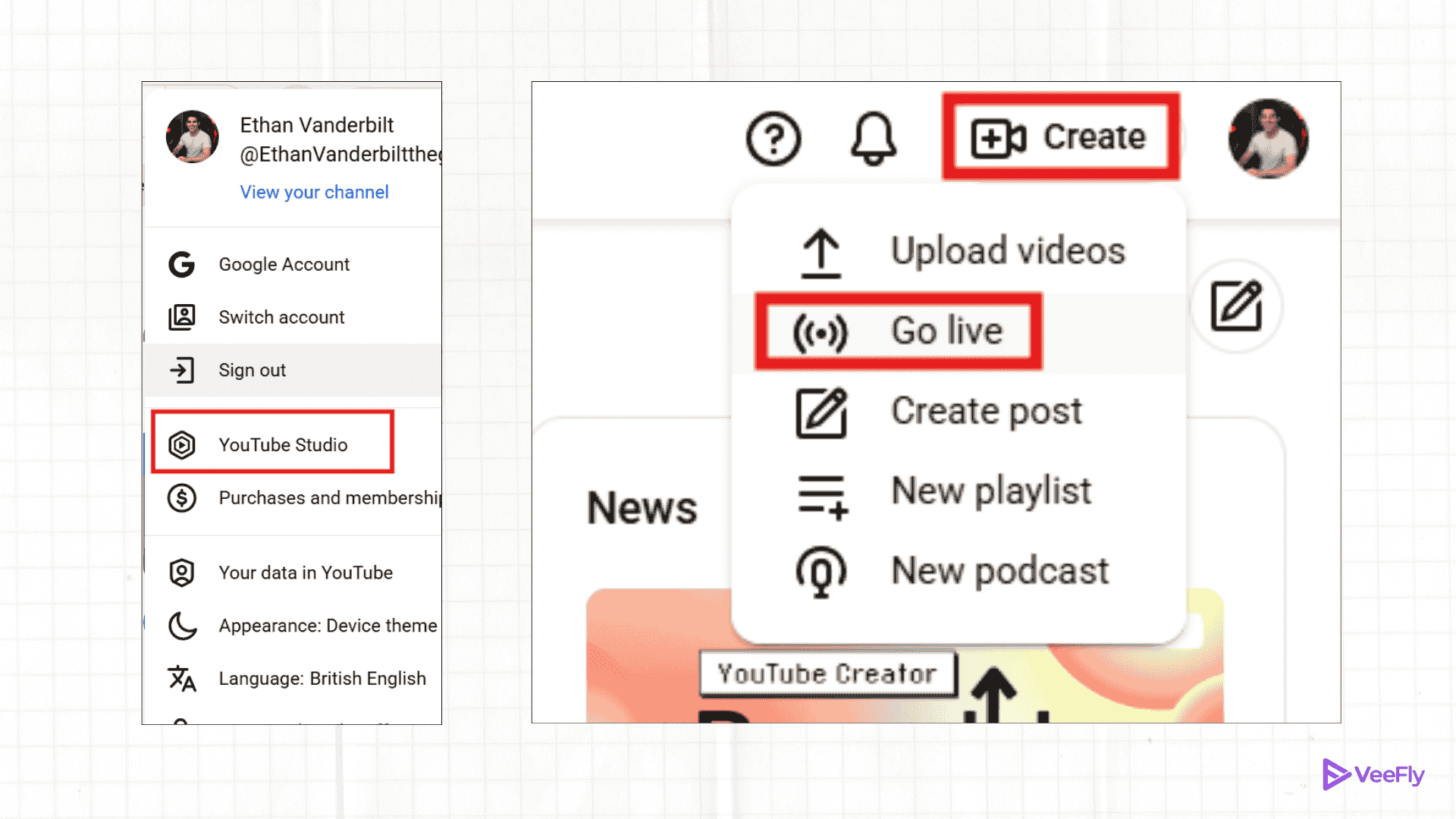
1. Go to YouTube.com on your desktop and sign in to your account.
2. Click on the Create icon at the top right.
3. Now, select the Go Live option.
4. From the sidebar on the left, click Manage(Live Control Room).
5. Then, click Schedule Stream on the right side.
6. Under the Create stream option, add the title and description and click Next. 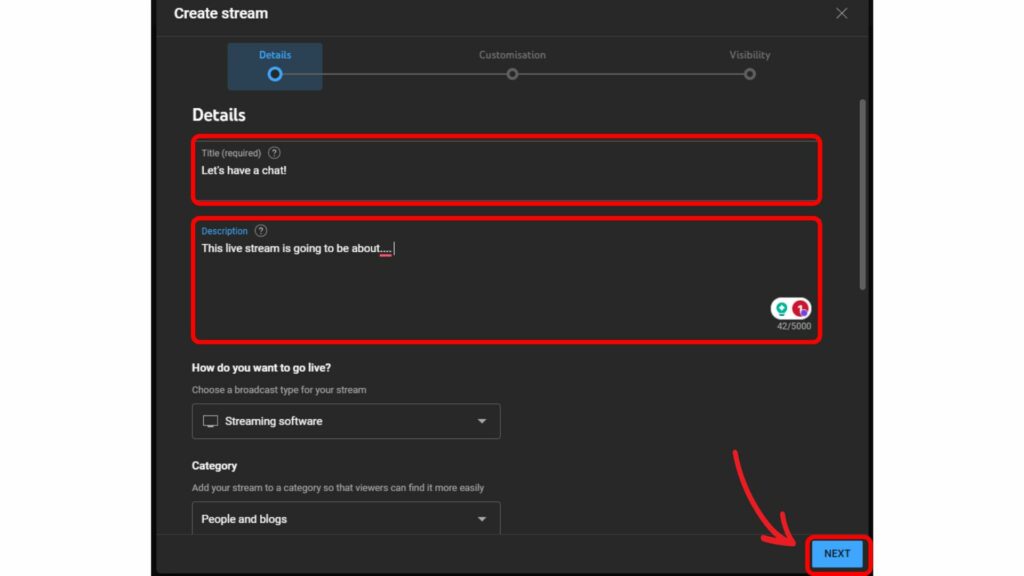
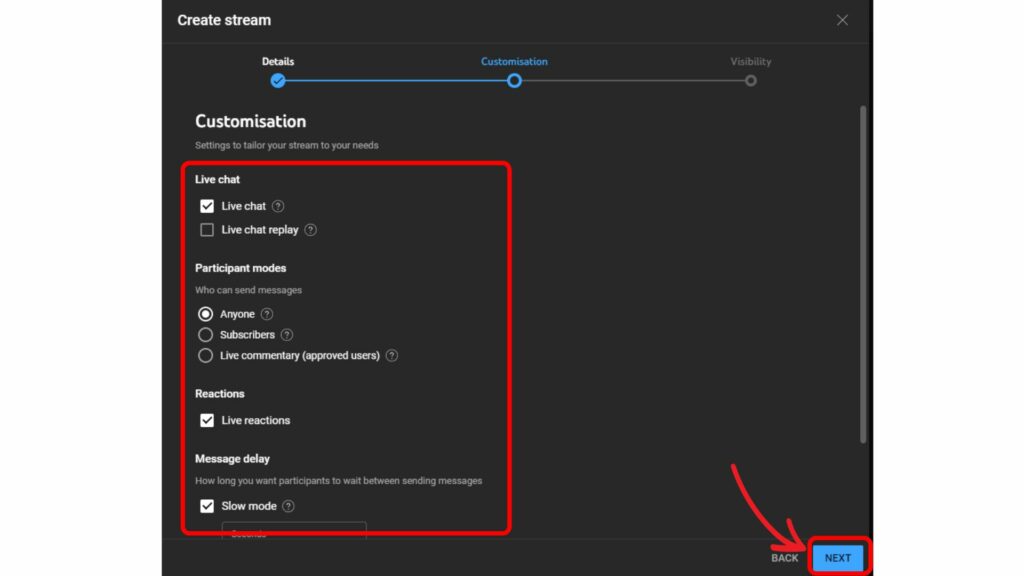
7. Then, customize, such as thumbnail, date, time, etc., all the other settings for the live stream session. Click Next.
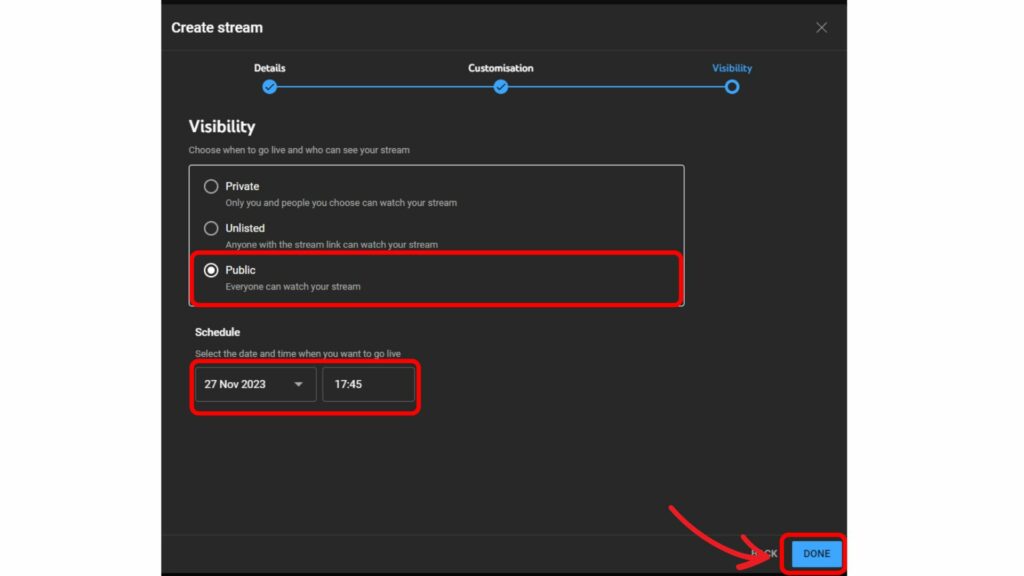
8. Under Visibility, you can select public, unlisted, or private. Also, add the date and time for your live session. Click Next.
9. Finally, click Done. You have successfully completed the process to schedule a livestream on YouTube.
How to schedule a livestream on a YouTube PC (Computer)?
Scheduling a live stream on a computer follows the same steps as above. Let’s take a quick recap. In YouTube Studio> Create Icon(+) > Go Live > Live Control Room > Schedule Stream > reuse/same settings onboard > fill stream details (titles, description, date, time, thumbnail, visibility) > audience settings > stream methods(OBS, Webcam, Encoder) > Save everything and schedule.
How to schedule a live stream on the YouTube mobile app
On a mobile device, the steps are the same; the interface is just different, you open the app and tap the centre (+) icon to find the live scheduling option.
YouTube Livestream Requirements & Eligibility in 2026
The main requirement is that the account must be verified. The checklist is:
Age Limit: The creator of a live stream must be 16 years old.
No Strikes: The channel must not have restrictions or active community guideline strikes within the last 90 days.
Waiting Period: You must enable the live stream feature on your account. Then you have to wait 24 hours before you can start your first live stream.
Device requirement: The live stream from the webcam should be detected by a camera and a compatible browser. There is no minimum subscriber count requirement, unlike mobile.
Mobile streaming requirements: To live stream on YouTube mobile, you need 50 subscribers and a compatible device.
Other, less necessary requirements include a high-speed internet connection, equipment, encoder software or hardware, etc.
Final Thoughts
Now that you know how to schedule a livestream on YouTube in advance, you can share the link on your social media accounts so more viewers can join you. Streaming live is one of the best ways to engage with your audience. Since your viewers know you are scheduling a live session, be prepared to answer their questions by checking the chat during the live session.
Live sessions give you a chance to interact with viewers in real time. You can also explore ways to increase YouTube likes to encourage more interaction with your content.
Frequently Asked Questions
Q1. Can I livestream without 1000 subscribers?
Yes, you can livestream on your YouTube channel without having 1000 subscribers. There is no minimum subscriber count to go live on YT.
Q2. Is there a limit on YouTube livestreaming?
There is no time limit for livestreaming on YT. But if you want your live video to appear in the archive, then you can stream it for only 12 hours.
Q3. Does YouTube count live stream watch time for monetisation?
Yes, YouTube counts live stream watch time the same way it counts watch time for regular videos. That simply means every minute a viewer watches your stream is counted towards your total watch time.
Q4. Can I do a private YouTube livestream?
Yes, you can live-stream privately on YouTube. But you need to share the live video link with the people you want to watch.
Q5. How to schedule Live Stream on YouTube with OBS?
Once you have scheduled your live stream, get the stream key, open OBS Studio, and start streaming. Choose Service: YouTube -RTMP and paste your stream key, then apply. Configure audio, video, layout, etc., and you can live stream in OBS Studio.
