


Key Takeaways:
- Shorts uploaded from a computer must be vertical (aspect ratio 9:16 or square 1:1) and no more than three minutes long.
- Uploading YouTube Shorts from a computer helps you maximise quality and speed.
- Using #Shorts in your title or description can help YouTube’s algorithm recognise and display your videos on the Shorts Feed.
- Using a computer lets you handle multiple video uploads and plan publishing dates at once.
- YouTube Studio for desktop supports batch processing of up to 15 videos at once.
Mastering how to upload YouTube Shorts from PC simplifies workflow efficiency for video creators. Utilising YouTube Studio on desktop enables batch processing of up to 15 vertical clips, advanced metadata scheduling, and automated copyright checks. To upload shorts on YouTube from PC, videos must maintain a 9:16 or 1:1 aspect ratio and be under three minutes. Knowing how to upload a YouTube short on PC lets creators link related long-form videos and optimise safe-zone visuals effectively.
Why Upload YouTube Shorts From Your PC?
Shorts are vertical, and previewing and uploading them on your phone is quick. However, using a PC gives you more control. Here is how to upload Shorts on PC
Adding a series of uploads: If you are creating a YouTube Shorts series, you need to upload it in serial order. On mobile, you have to keep jumping between tabs and previewing them each time. On a PC, you can open different tabs or screens and view them all at once.
File management: Managing files by footage and series becomes much easier on a PC. Simple drag & drop, creating subfolders, renaming, etc. Gets easier on pc.
Updating metadata: Adding titles, descriptions, tags, etc, gets easier. AI YouTube extensions can quickly fill in the details.
Flexibility: If you upload or schedule multiple videos, managing the calendar and multitasking is much easier on a PC.
Technical Requirements to Upload Shorts on YouTube from PC
To ensure YouTube automatically categorises your desktop upload as a Short, ensure your video file matches these technical parameters:
| Technical Parameter | Requirement for YouTube Shorts | Recommended Setting |
| Aspect Ratio | Vertical (9:16) or Square (1:1) | 1080 x 1920 pixels (9:16) |
| Video Length | Up to 3 minutes (180 seconds) | 15 to 60 seconds for peak audience retention |
| File Format | MP4, MOV, WebM, AVI | MP4 (H.264 video codec, AAC audio) |
| Resolution | Up to 4K / 1080p supported | 1080p HD vertical |
How To Upload Shorts On YouTube From PC?
Uploading Shorts is the same as uploading long-format videos. You can upload YouTube Shorts from desktop by following the steps. YouTube automatically detects the video’s length and categorises it as short or full-length.
Step-by-Step Guide
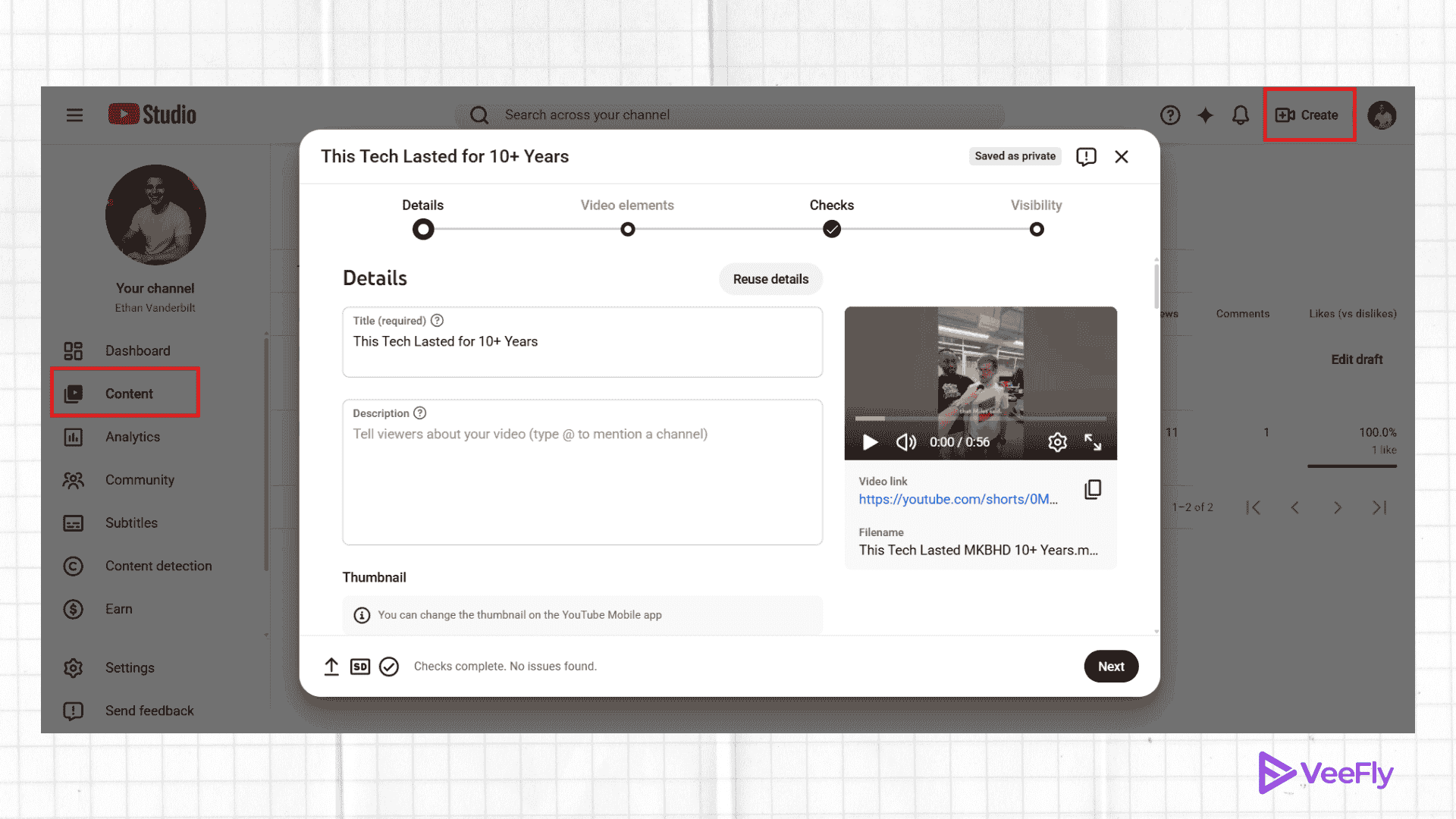
1. First, Go to YouTube Studio.
2. Next, click on the (+) Create button and select Upload Videos.
3. Next, create your Shorts and upload the file.
4. Fill in the required information, such as title, description, thumbnail, Audience type(made for kids or not), and add #Shorts in the description or title.
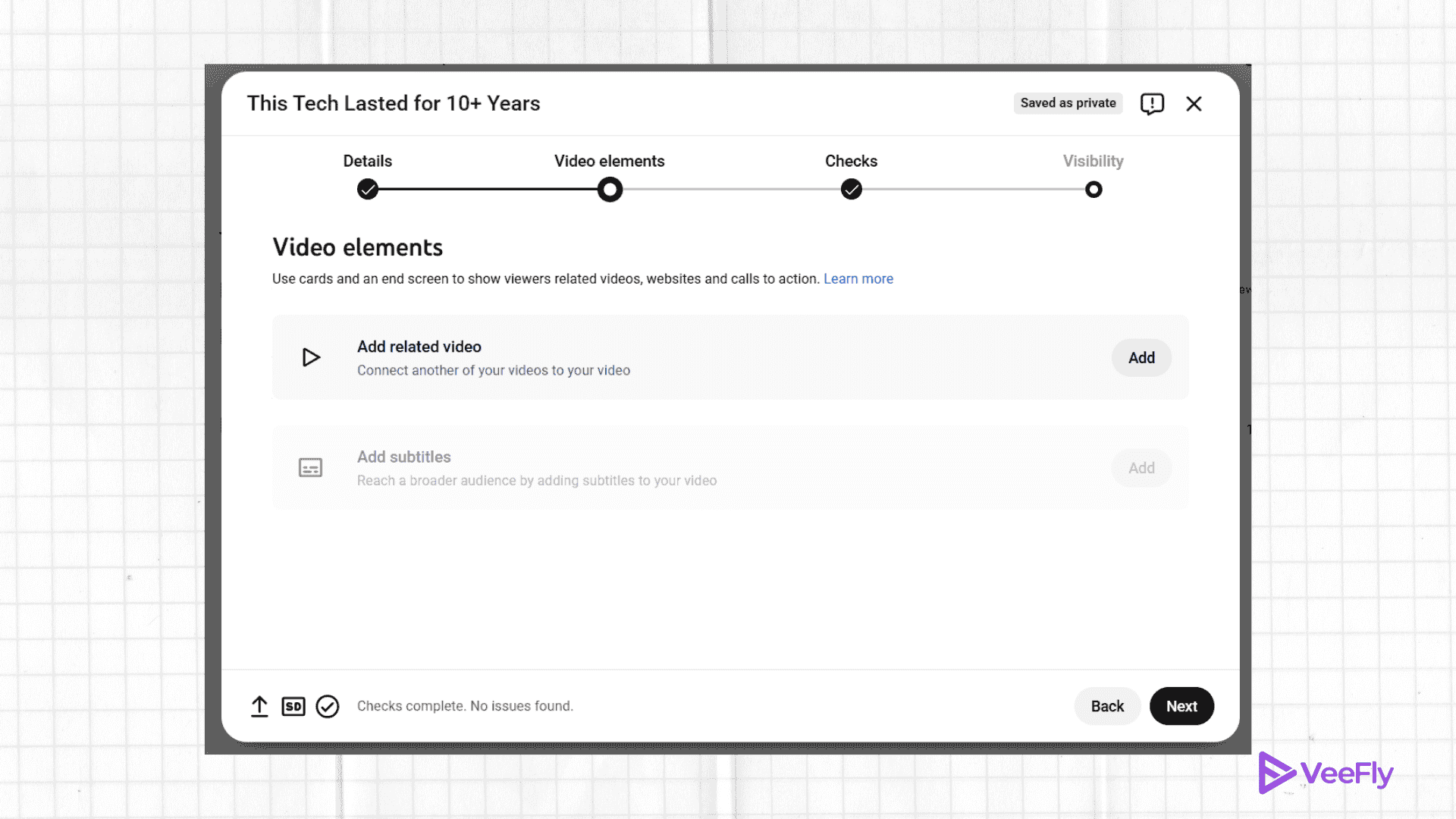
5. Add related video and subtitle file.
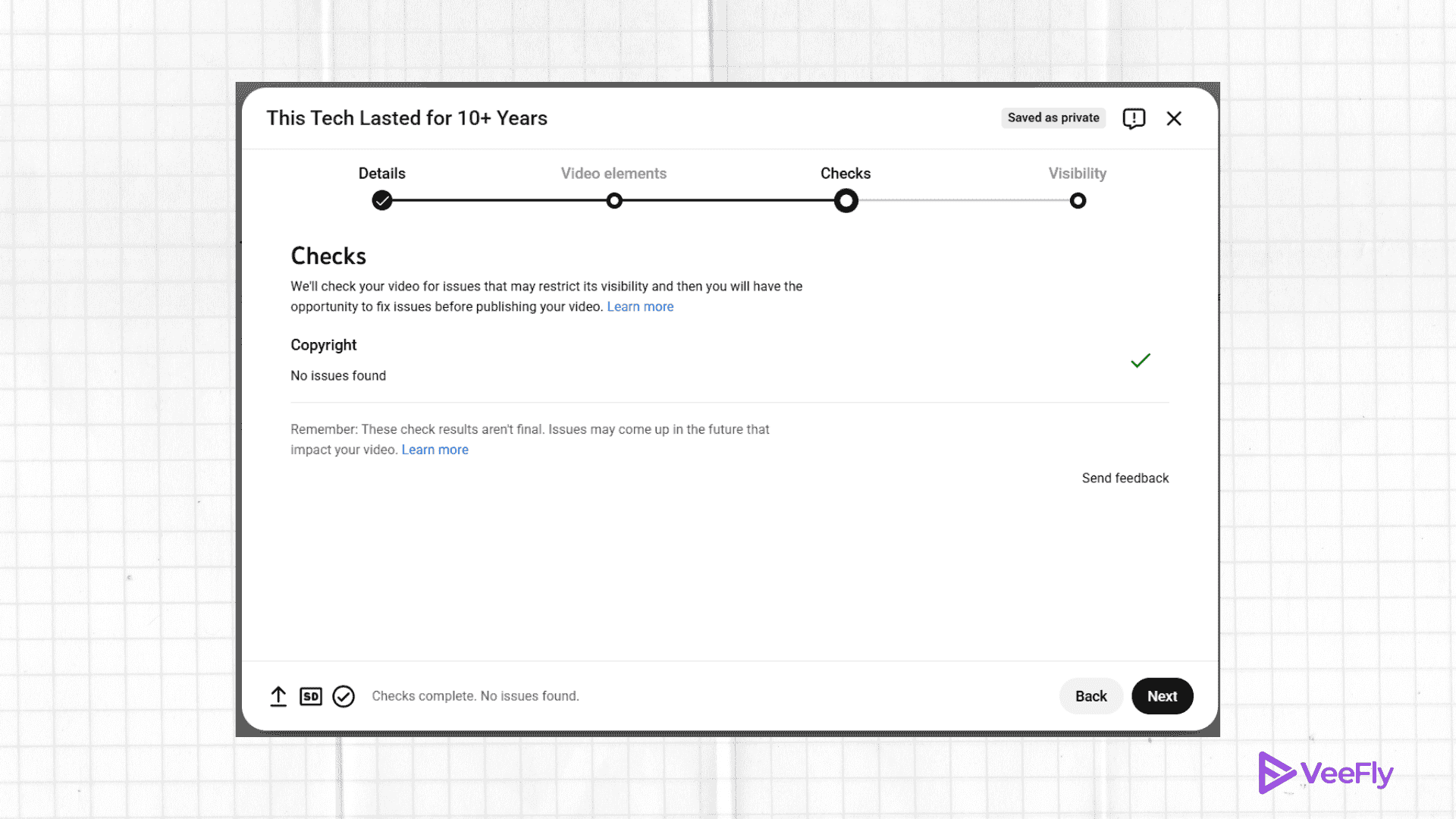
7. Next, you will be directed to the checks screen, where YouTube checks the copyright issues.
8. Finally, select the visibility of your shorts. For example, Public or Private.
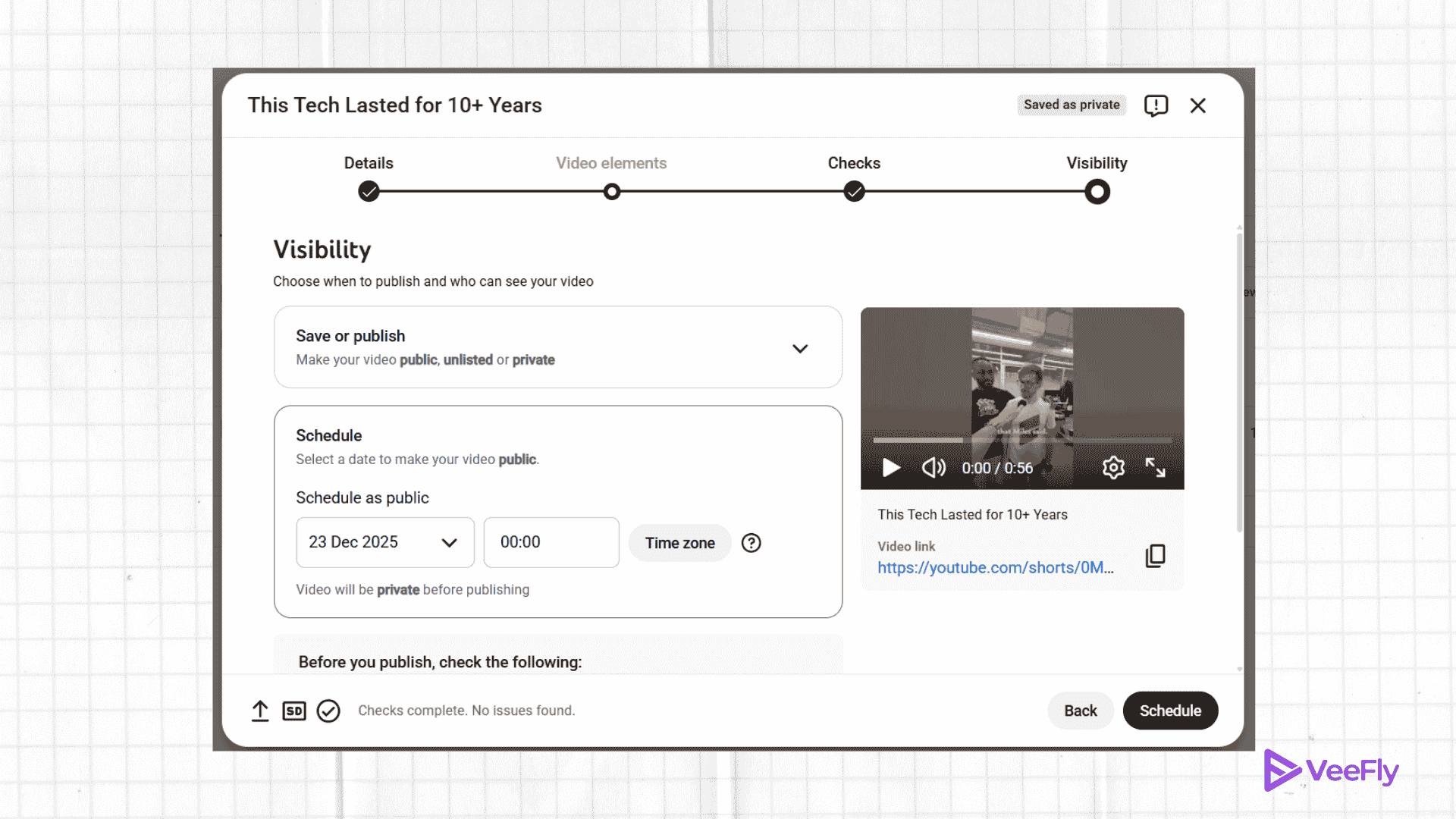
9. Then click Publish, and that’s it!
If you do not want to publish the video right away, you can also schedule it. All you have to do is enter the date and time of publishing. These are only steps. Now you know how to post YouTube Shorts on a computer.
These steps work for all browsers and operating systems because they happen within the YouTube app, so they also apply if you want to know how to upload YouTube Shorts on iPhone or how to upload a YouTube Short on iPad.
Advanced Safe Zone and Editing Rules for PC Editors
You need to clean up and prepare your edit in the right order when editing and uploading YouTube Shorts on a PC from your NLE (Non-Linear Editor). Desktop video programs such as Adobe Premiere Pro, DaVinci Resolve, or CapCut PC let you adjust the framing precisely before you upload to YouTube Studio.
- Mobile Interface Safe Zone: Although YouTube Shorts are presented on a 1080 x 1920 vertical canvas, the mobile interface renders text overlays, channel titles, sound attribution, and engagement icons over the top and bottom edges. Keep important visuals, facial close-ups, subtitles, and calls to action in the middle viewing safe zone of 900 x 1350 pixels to prevent interactive buttons from obscuring your content.
- Optimise NLE Timeline Settings: Before you export, set your NLE sequence (project) to 1080 x 1920 (9:16 aspect ratio). When you export a vertical clip from a horizontal sequence, you burn the black pillars into the file; YouTube will read it as a standard long-form video rather than a Short.
- Front-Load Retention Hooks: Desktop analytics show viewer drop-off is highest in the first 3 seconds. Open with white-hot action (visual or textual) to immediately hook viewers in the scroll feed.
Troubleshooting & PC Shorts Upload Checklist
If you’re uploading vertical video from your computer but it’s not being placed into the YouTube Shorts shelf, go through this preflight tech checklist:
- Check Canvas & Frame Size: Make sure your exported video is vertical (9:16) or square (1:1). If your file’s resolution is 1920 x 1080 (16:9 landscape), YouTube will not place it on the Shorts shelf.
- Duration & Audio Rights Limits: Shorts can be up to 3 minutes (180 seconds) in length on YouTube. But you will receive global content blocks when using copyrighted songs or getting Content ID claims on videos longer than 60 seconds. For 60+ second Shorts, use royalty-free music or original voiceovers.
- Batch Upload Management: When uploading up to 15 Shorts at once via a PC browser, tap “EDIT DRAFT” on each item in YouTube Studio to check audience age rating, related video cross-links, and schedule timestamps before clicking “Publish All.”
Visual Asset Guidelines for Creators
Adding clean, branded visuals enhances guide clarity when producing tutorial content for creators.
- File Name: veefly-upload-youtube-shorts-pc.png
- Alt Text: VeeFly step-by-step guide on how to upload YouTube Shorts from PC
Final Thoughts
You can easily learn how to make YouTube Shorts on PC, and then you can upload YouTube Shorts from PC. But when you are working from your desktop, you do not have to juggle multiple apps, unlike a phone. You can easily post good-quality videos from your desktop. Just make sure that the shorts are copyright-free and kid-friendly to avoid copyright infringement and age restrictions on your videos. Once your Shorts are ready to publish, you can explore ways to get free YouTube views and help more people discover your videos.
Frequently Asked Questions
Q1. Why Can’t I View YouTube Shorts On PC?
YouTube app has some glitches, which could be why you cannot watch YouTube shorts on a PC. If you cannot find shorts on the YouTube website, here’s what you can do: On the home page, click on the shorts under the home icon.
Q2. Why Can’t I Upload Shorts On YouTube?
You might be unable to because of the video duration or the format. The duration should be between 15 seconds and one minute, and the structure should be square or vertical.
Q3.Can I upload Shorts in 4K from PC?
Yes, you can upload 4K quality YouTube Shorts from your PC. The video must be around 60 seconds long, in MP4 format, with H.264 or H.265 encoding.
Q4. How to upload Shorts on YouTube from PC with music (copyrighted audio)?
You can add copyrighted audio in Shorts, but it should be from the YouTube Audio library, or else it will be detected using the content ID system.
