


Key Takeaways
- Use the “Upload Defaults” and save up to 10 minutes per video by pre-setting video descriptions, tags, and monetisation status.
- Save time on optimising video metadata with VeeFly AI Title Generator and VeeFly Tag Extractor.
- Use “Test & Compare” to see which thumbnails and titles drive the highest watch time.
- Use “Video Groups” in the YouTube Studio advanced settings of the Analytics tab of the YouTube Studio to compare performance between video series, video formats and seasonality.
- Easily manage comment sections with AI-powered keyword filtering and mass selection.
- Take advantage of “Video Groups” in the Advanced settings YouTube Mode and discover what content is popular during certain times of the year, as well as what content is really driving subscriptions.
- Auto-Translate subtitles and descriptions with the click of a button, without ever needing a human translator.
What are YouTube Studio Advanced Settings?
To get to YouTube advanced settings, log in to YouTube Studio, click on “Settings” on the left menu, and then click on “Channel” and “Advanced Settings” or “Analytics” and “Advanced Mode. These panels let creators manage channel-level settings, audience targeting (“Made for Kids”), upload defaults, and performance analysis to help drive channel growth.
Key Advanced Channel Settings
YouTube advanced settings are advanced-level features in YouTube Studio that let creators manage channel settings, audience, monetisation, and in-depth channel metrics. You can find them by logging into YouTube Studio on a computer, clicking the “Channel” option in the left navigation sidebar, then opening the “Advanced Settings” tab.
- Audience: Set “Made for Kids” to indicate whether the channel targets kids.
- Channel Insights Sharing: Enable the sharing of audience stats and performance data with advertisers to attract business.
- Google Ads Account Linking: Link the Google Ads account to display ads on the channel.
- Automatic Captions: Set to block inappropriate words.
- Subscriber Count: Set to show/hide the subscriber count.
- Advertiser Interest: Set to enable/disable sharing analytics with third-party advertisers.
Additional Advanced Features
- Feature Eligibility: Enable access to intermediate features such as video upload over 15 minutes, custom thumbnails, and live streaming by verifying the channel’s identity.
- Content Management: Set content-related settings in the community hub to filter comments and blocked words.
Where is Advanced Seetings in YouTube Studio?
- Sign in to YouTube Studio.
- Select “Settings” in the left navigation panel.
- Select “Channel.”
- Select the “Advanced Settings” tab.
How to Use YouTube Studio Advanced Settings?
While most content creators use YouTube Studio as a basic tool for tracking views, if you want to grow your channel in 2026, you need to explore YouTube Studio’s advanced settings. These tools are often overlooked, but YouTube created them to help content creators grow their channels. Here are a few of the advanced YouTube Studio features:
1. Save Time with Upload Defaults
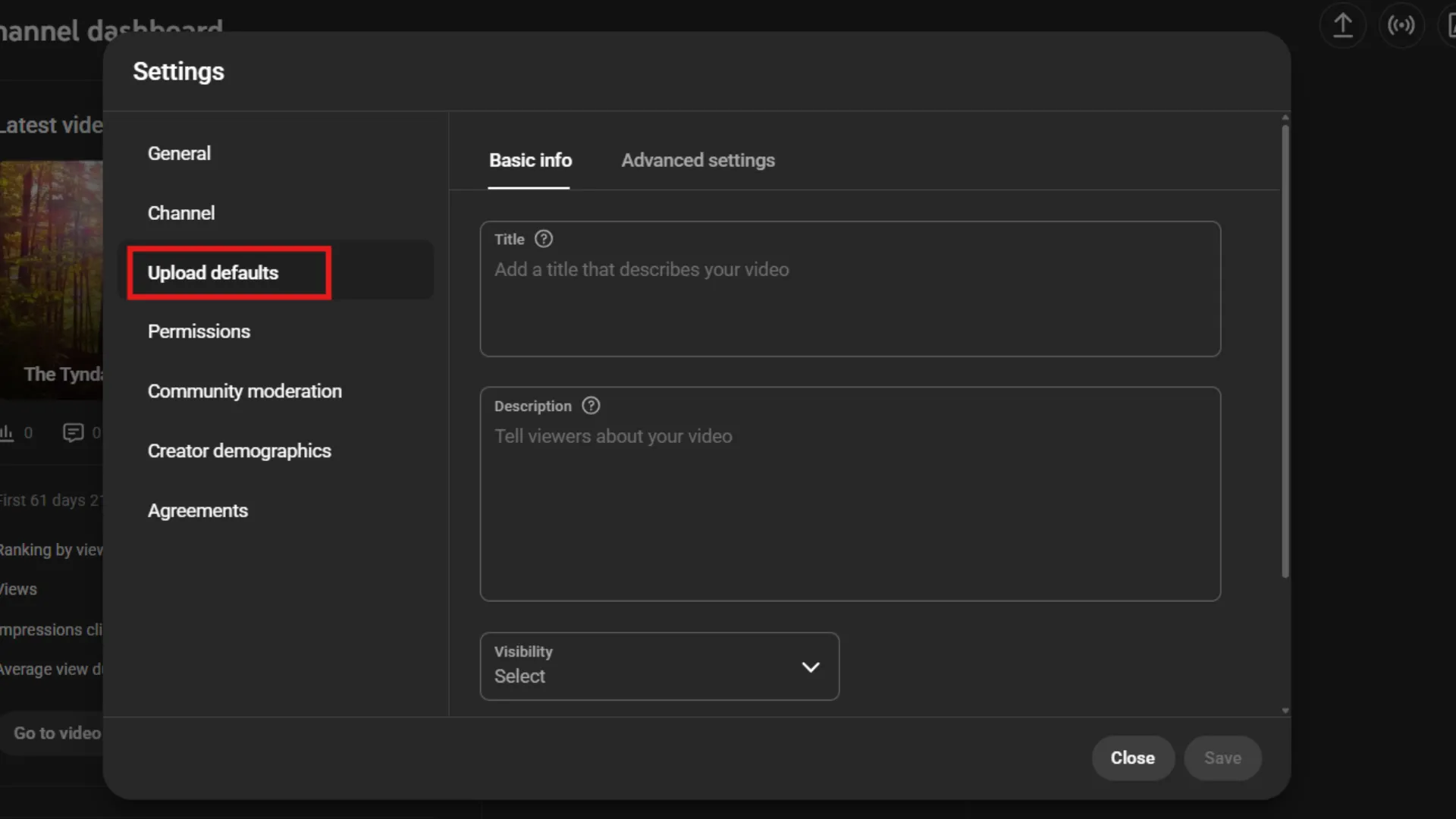
Upload Defaults in YouTube Studio enable creators to save the default settings for their video, including description, monetisation, category, and core tags, and automatically apply them to all new uploads. This eliminates repetitive tasks, keeps metadata consistent, and can speed up video publishing workflows by up to 70%.
To save time, go to Settings > Upload Defaults. Here, you can create a permanent default for each video. Here, you can save:
- Standard Tags: Keep your core brand keywords consistent.
- Descriptions: Add your “About the Channel” description and social media links.
- Visibility: Keep each video “Unlisted” by default, ensuring you’re ready for SEO before publishing.
- Monetisation: Select your preferred ad style once instead of for each video.
While it may take five minutes, it can save you dozens of hours in the coming year.
2. Take Control with Comment Moderation
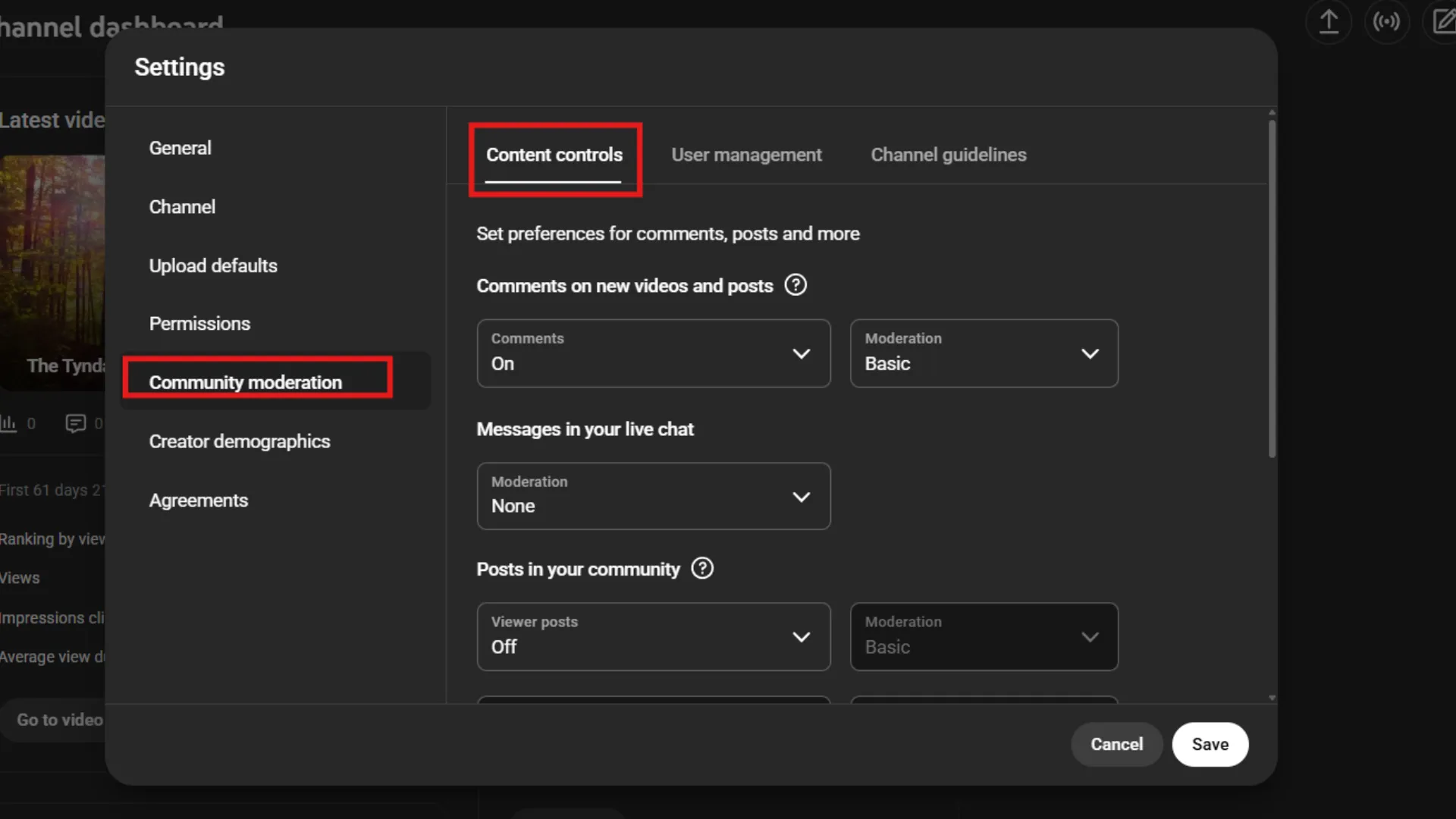
Engagement is the lifeblood of the algorithm. Spam is the death knell for your community’s vibe. Many YouTubers are searching for answers to the question “where are the advanced settings in YouTube Studio” to control their communities. The answer is in Settings > Community.
The improved comment moderation system by YouTube allows you to:
- Block Links: Stop your community members from spamming your comment sections with self-promotional links.
- Keyword Filters: Create a Blocked Words list and make sure no comment with your favourite slur or spam phrase ever sees the light of day.
- Bulk Selection: If your video goes viral for the worst possible reasons, use the bulk selection feature to remove or allow hundreds of comments instantly.
3. Discover Strategic Insights with Video Groups
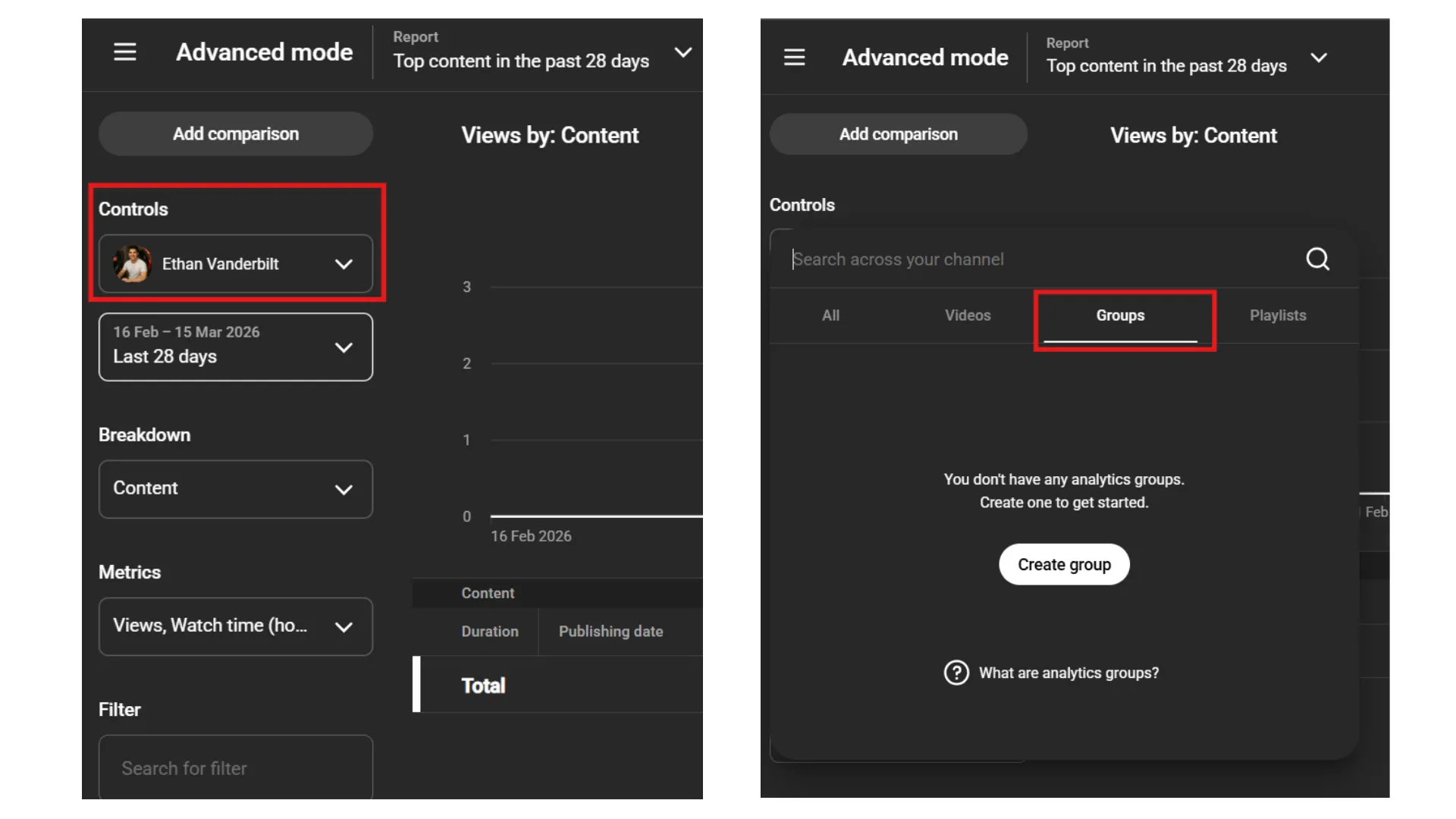
Video Groups in YouTube Analytics Advanced Mode allow creators to group up to 500 videos in a single cluster to analyse performance metrics for the group. Cluster content to see how each series performs, compare content formats, and identify viewer trends by season without manually analysing individual videos.
- Analyse Series Performance: Do your “Vlog” series really convert more subscribers than your “Tutorial” series?
- Identify Seasonal Trends: How did your holiday-themed content do this year compared to last year?
- Test New Formats: Are your new content formats affecting your average view duration? Group them separately and find out.
4. Boost CTR with the Thumbnail “Test & Compare”
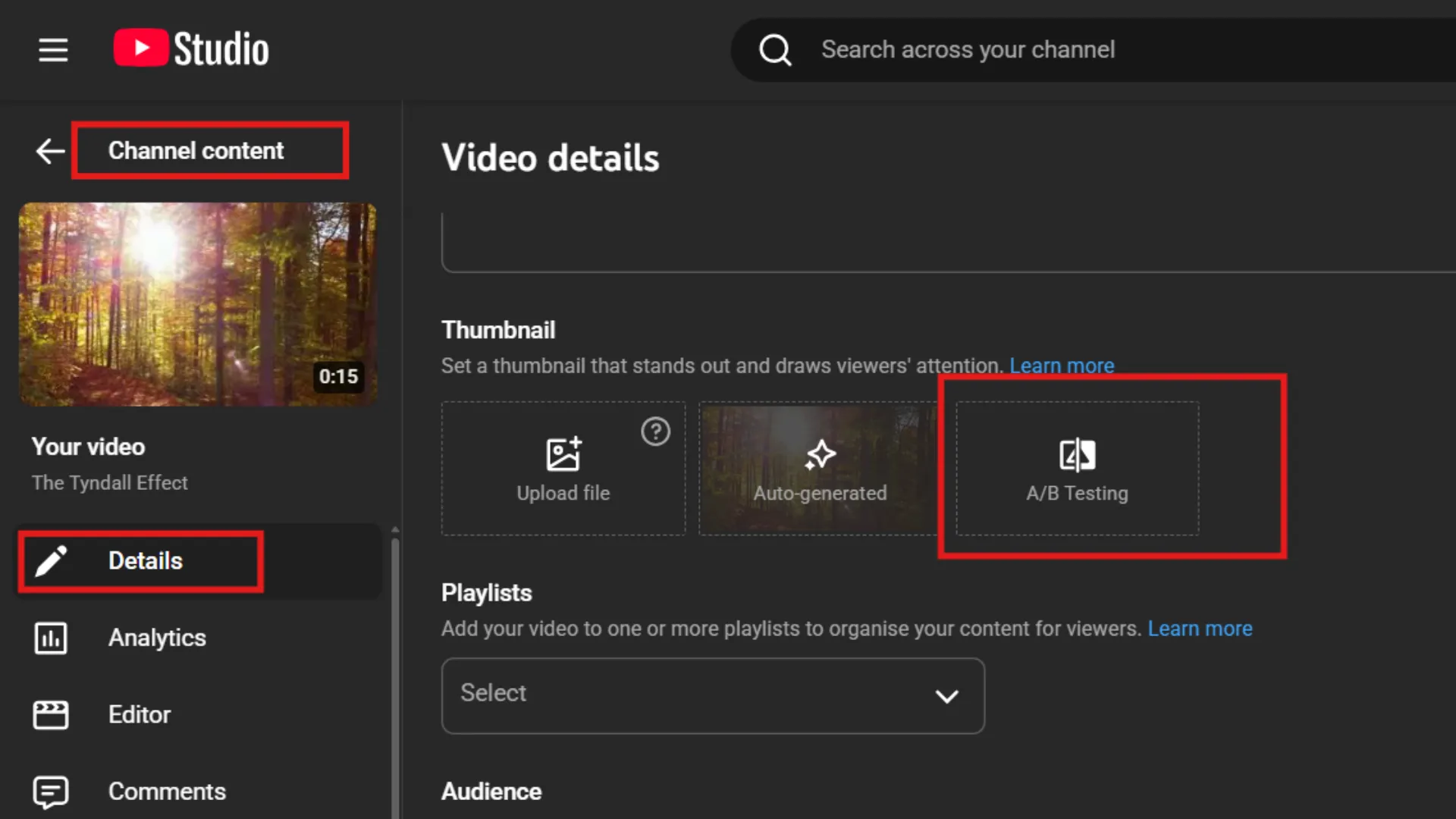
Test & Compare is a built-in A/B testing tool in YouTube Studio that lets creators upload up to three thumbnail variants for a single video. YouTube then rotates these thumbnails among viewers and automatically picks the winner based on the watch time share during the test period.
To access it, go into the content area, select a video, and scroll down to the thumbnail area. Click on the three dots and select “Test and Compare.” You can upload up to three different versions. YouTube will then rotate it for your audience, and after a few days, it will automatically select a winner based on watch time.
5. Reach Global Audiences with Auto-Translate
Not all of YouTube’s audiences are native English speakers. To reach global audiences, you can use the advanced settings in YouTube Studio.
In your video’s settings, you can find Languages in the left sidebar. From there, you can add a language, choose your region (such as Spanish or Hindi), and use the feature called Auto-Translate. Don’t forget to translate your titles and descriptions, too.
Feature Access: Desktop vs. YouTube Advanced Settings for Mobile
Mobile creators use the YT Studio app, but for access to advanced features, they need to use the web interface.
| Setting / Feature | Desktop YouTube Studio | YouTube Advanced Settings for Mobile App |
| Upload Defaults Configuration | Full Access | Basic / Limited Defaults |
| Analytics Advanced Mode & Video Groups | Full Access | Basic Metric: Overview Only |
| Thumbnail “Test & Compare” A/B Testing | Full Access | Not Available |
| Community Keyword & Link Moderation | Full Access | Basic Comment Filter |
| Verify eligibility for a channel feature | Full Access | View Status Only |
Final Thoughts
YouTube advanced settings take a channel from a casual hobby to a data-driven content business. Creators can create a strong competitive edge by automating upload workflows, using VeeFly AI tools to optimize titles and tags and using Analytics Advanced Mode. Once you’ve optimized your channel settings, you can explore ways to get more YouTube views and reach a wider audience.
Frequently Asked Questions
Q1. Are YouTube Studio advanced settings available for all creators?
Yes, each channel account has access to YouTube Studio. However, some settings are available only if you are part of the YouTube Partner Program.
Q2. How often should I use advanced settings for my videos?
Use advanced settings for each upload to ensure visibility is set for the right audience. You can do regular checks to ensure accuracy and consistency.
Q3. Can I access YouTube Studio advanced settings on mobile?
The mobile YouTube Studio offers fewer settings than the desktop version, which is more convenient for monetisation, advanced mode, and audience settings.
Q4. Do advanced settings help with audience targeting?
Yes, advanced settings let you specify your content type. Such as it is for kids, or not, setting the default upload preference, adding keywords, etc, for more discoverability.