


Key Takeaways
- You can add a video to your canvas directly from its URL and immediately create an interactive video player.
- Canva’s search feature is integrated into the left-side Apps menu, so you can search for videos without leaving the app.
- Interactive video playback works only if it is embedded in live viewable links, web presentations and embedded designs.
- When you export your design as a static PDF or image, the playable video becomes a static thumbnail image.
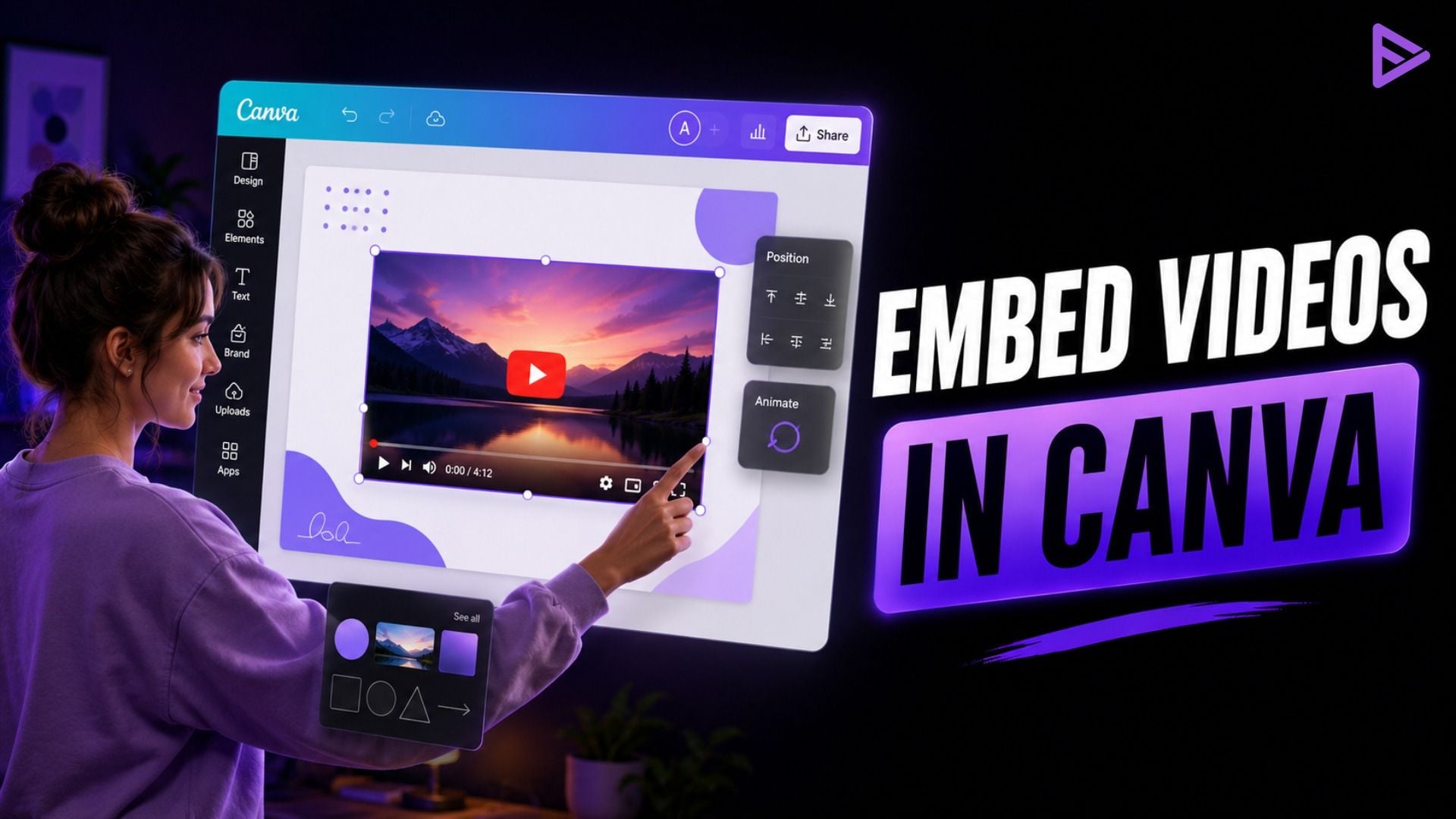
To add a YouTube video to a Canva design, paste any public video URL into your design, or use the left-hand Apps panel to search for a video. The link is automatically converted into an interactive video element by Canva. Once embedded, you can freely resize, frame, or position the player while preserving the native aspect ratio and playback functionality. VeeFly provides promotional features to help creators get their embedded channel content more views.
YouTube creators often struggle to make digital presentations and pitch decks dynamic for modern audiences. Adding video content directly inside visual assets increases viewer retention, removes platform switching, and presents tutorials seamlessly. Master two simple, fast methods to embed videos into your projects.
How Do You Embed a YouTube Video in Canva Using Direct URL Paste?
You can embed a YouTube video in canva by pasting the URL directly into canva with a keyboard shortcut. To convert your video link into a full media frame, simply copy and paste the link into any open design. This is a direct method, which bypasses sub-menus and accelerates the creation of decks.
Step 1: Copy Your YouTube Video URL
Go to YouTube, open the video you want to share, click the “Share” button below the video box, and then click “Copy Link”.
Step 2: Paste Directly onto the Canva Canvas
Go back to your Canva design workspace and press Ctrl + V (Windows) or Cmd + V (Mac) directly on the workspace page.
Step 3: Adjust Size and Test Video Playback
To resize your media player to a standard 16:9 widescreen ratio, click and drag the outer corner handles and then click play to test.
How Do You Add YouTube Videos to Canva Using the Built-In YouTube App?
Adding how to add YouTube videos to canva using Canva’s built-in app integrations will allow you to seamlessly browse without leaving your workspace. The creators can use the dedicated YouTube app panel to search for terms or to enter individual video IDs. This will ensure accurate positioning of assets throughout multi-page slide decks.
Step 1: Launch the Apps Tab in Canva
Inside your editor workspace, click the “Apps” icon in the left sidebar menu, and then scroll down.
Step 2: Search for the YouTube Embed Tool
In the search bar, type “YouTube” and hit the official YouTube app icon to open the search panel in Canva.
Step 3: Insert and Frame the Video Content
Type in some keywords or paste your URL into the search bar of the app, and then click on the video thumbnail to drop it right onto your canvas page.
What Are the Key Differences Between Canva Video Embedding Methods?
Whether you’re looking for quick keyboard shortcuts or in-editor content exploration, the right approach to learning how to insert a YouTube video into Canva is dependent on your preference. Both approaches produce working video elements, but the steps in the workflow and the layout features are different.
|
Feature / Capability |
Direct URL Paste Method |
Built-In YouTube App Method |
| Primary Advantage | Quickest execution with ease of use via simple keyboard shortcuts. | View and search videos within Canva without having to go to a different tab. |
| Required Inputs | The full URL of YouTube has been copied to your clipboard. | The video URL, video ID or topic search terms. |
| Mobile App Support | Accessed through the hyperlink settings menu. | Supported by Canva’s built-in Apps tab |
| Interactive Playback | Uses live web links and Present Mode. | Takes action on live web links and Present Mode |
| Best Used For | Quick additions of specific, pre-selected videos | The ability to discover content and choose from a variety of video options. |
Why Does an Embedded YouTube Video Stop Playing or Fail to Load in Canva?
It is important to learn how to put a YouTube video in canva so that you can solve the most common problems that may occur when playing a video. Embedded streams will not work if permissions are denied or if a live web script is not supported by the export file format. Dealing with privacy settings and file structures guarantees the presentation is delivered smoothly each and every time.
Privacy Settings and Unlisted Video Restrictions
YouTube videos will display error screens if they are set to “Private” or “Restricted” for third party site embedding. According to YouTube Creator Documentation, a video has to be configured to “Public” or “unlisted” with third-party embedding turned on in the YouTube Studio settings to stream to the outside. If you’re not used to using hidden links, understanding YouTube unlisted video settings means your embedded playback permissions are not disabled for third-party apps, such as Canva.
Export Format Limitations (PDF vs. Web Links)
Interactive video players are only active in digital environments, such as Canva Present Mode or view links. When designs are downloaded as static PDF, PNG or MP4, the frame is flattened and becomes a still thumbnail. Share your project with the “Any link with access can view” web feature on Canva to keep it active while playing.
How Can Creators Optimize Embedded YouTube Content for Maximum Audience Engagement?
Simple media embeds are transformed into high-converting audience touch points by strategic presentation design. According to Think with Google research, interactive digital content outperforms static slide layouts in terms of engagement. The use of visual hierarchy and context around your player will encourage viewers to interact with you.
To get the best results from your layout:
- Use clean graphic borders or subtle frame elements behind the video player to seamlessly integrate media with brand design.
- Include action-oriented descriptive headings right above the video frame to tell viewers what they should do when they see it.
- Resize to a native 16:9 aspect ratio to avoid unwanted letterbox or distortion.
- Before sharing with clients, test your design in Canva’s Present Mode on desktop and mobile web.
Final Thoughts
With the ability to embed videos, you can turn your static slide decks into interactive, engaging media experiences for your audience. Direct links or searching through the app menu, adding a video takes seconds. When your designs are finished, leverage the overall video reach and channel growth with VeeFly’s YouTube promotion features.
Frequently Asked Questions
Q1. Can you play embedded YouTube videos inside a downloaded PDF from Canva?
No, you can’t play embedded streams directly in downloaded PDFs, since PDFs only support static images or standard hyperlinks. When you export a presentation as a PDF standard, Canva will turn the video frame into a still image thumbnail. To enable viewers to play content, share a public Canva web link or present directly in Present Mode.
Q2. Why is my embedded YouTube video showing a black screen or playback error in Canva?
Playback errors are those that occur when an external site embedding is blocked by the privacy settings of a video or when embedding of third-party videos is disabled. Make sure that the video is set to “Public” or “Unlisted” in YouTube Studio under distribution settings. Also, make sure that your internet connection is on, as Canva streams embedded video content live from YouTube servers.
Q3. Will embedding a YouTube video in Canva help it get more views on YouTube?
Yes, views from embedded Canva players will be counted towards official YouTube metrics, provided the player is used to trigger play. YouTube monitors valid plays on external embedded players via standard API triggers. The watch time metrics will not be counted; however, if the design is exported as a static file format, views will not be counted within Canva designs.
Q4. Can I add my YouTube video to Canva?
Yes, you can add your YouTube video to Canva by copying its public URL and pressing Ctrl + V (Cmd + V on Mac) directly onto your canvas. This generates an active video player in under 5 seconds without requiring file uploads. You can also use the built-in Apps menu to search and add your own published videos directly into your presentation or social design.
