


Key Takeaways:
- YouTube Clips lets eligible viewers select and share 5 to 60 seconds from a video or live stream.
- Clips remain connected to the original YouTube video rather than becoming a separate uploaded video.
- YouTube video clips are public and can be watched by people who have access to the original content.
- Creators can manage clips made from their videos through YouTube Studio.
- Creators can turn off the Clips feature for their channel through YouTube Studio settings.
- Creators can also create new Shorts from eligible public videos they have uploaded using YouTube’s “Edit into a Short” feature.
- Deleting a clip removes it from YouTube, but the original video remains available unless you remove it separately or make it private.
YouTube Clips let viewers select 5 to 60 seconds from eligible videos, share them through links, manage clips in Studio, or turn eligible content into Shorts.
If you want to know how to take a clip from a YouTube video, YouTube’s built-in Clips feature lets eligible viewers select 5 to 60 seconds from a video or live stream and share that section through a clip link. For creators, YouTube also provides tools to manage clips made from their content and, where eligible, turn their own videos into Shorts.
How to Take a Video Clip From YouTube?
To create a clip from a qualified YouTube video, sign in to your YouTube account & navigate to the video, select Clip from the More menu, pick the clip section, add a title to your clip, and finally share it. Instead of processing and downloading the footage as a separate video file, the Clips feature generates a link to share the selected portion.
Steps To Capture Clips From YouTube Videos
You will notice that the clipping feature is enabled by default. YT video clips are public, and anyone with access to the original video can watch them. As a viewer, you can create and share a clip of your favourite YT video by executing the steps below.
1. Sign in to YouTube.com
2. Play the video you would want to clip.
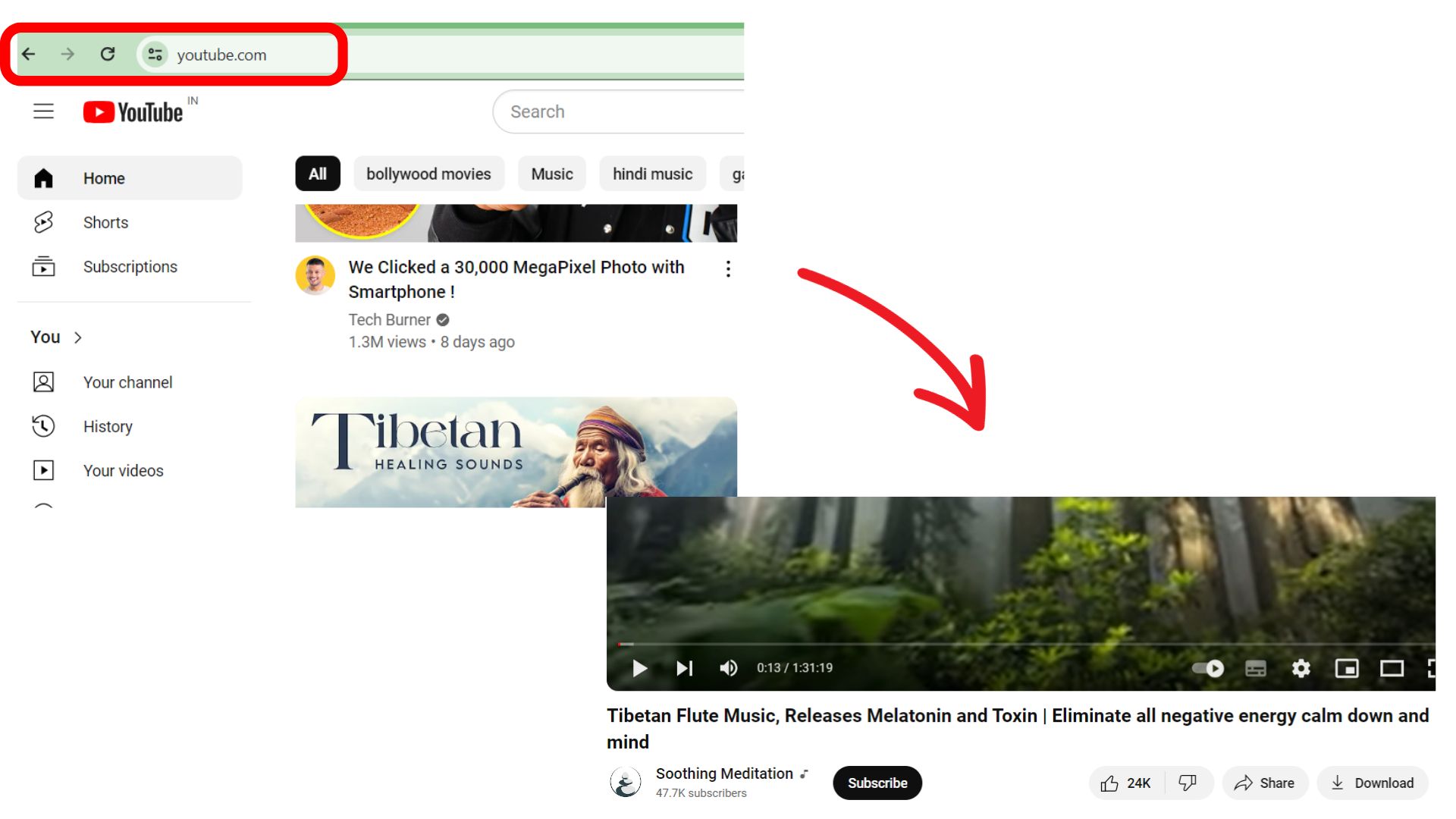
3. Click on the three-dot icon beside the share option.
4. Click on ‘Clip‘ from the drop-down that appears.
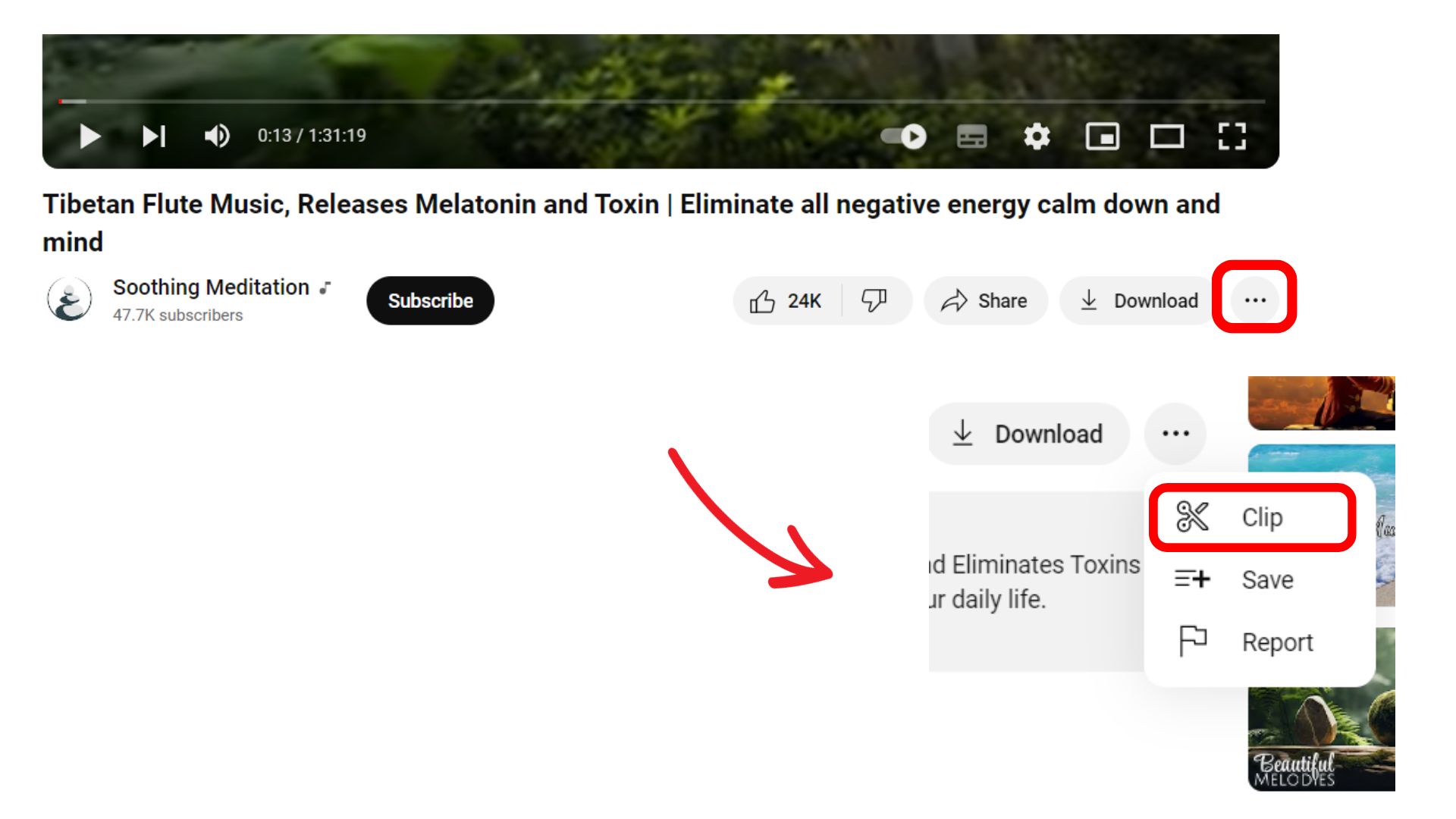
5. Add a suitable title for the clip and select the required section of the video you want to clip. You can adjust the clip length by dragging the slider.
6. Once done, click on the share clip option. You can share YouTube video clips using the embed function, share them directly to your social handles, or copy the link and paste it wherever you want to share it.
As a viewer, you can find the clips you made in the clips library.
According to YouTube’s current Help documentation, a Clip must be at least 5 seconds and can be up to 60 seconds long. Clip titles can be up to 140 characters. Sharing options also include embedding the clip, sharing it on supported social networks, emailing it, or copying its link.
On mobile, the steps are a bit different. Android users can now create video clips of YouTube videos. Open the YouTube app, go to the video, tap Clip (below the Subscribe button), select a section with the slider, and share the clip.
YouTube’s Clips library lets you find clips you have created, while creators can also access clips made from their videos.
How Do You Find Clips From YouTube Videos Already Created?
If you want to know how to earn from community clips in YouTube videos you have created, you should know that YouTube Studio features a separate Clips tab for videos with community clips. You can download, play, and distribute clips from your videos without the source video file.
To clip one of your videos:
- Log into YouTube Studio. Log in to your YouTube Studio.
- Select Content from the left menu.
- Click on the title or thumbnail of the video.
- Click Clips from the left menu.
- Watch, play, or share clips from that video.
In addition, YouTube provides you with information on the performance of your clips in YouTube Studio, such as how many clips were created from your video, the number of views on each clip, and the top clip creators.
Can You Download a YouTube Clip?
YouTube’s standard Clips feature is designed for sharing a selected portion of a video through a clip link. It does not turn the selection into a downloadable video file. If you need an actual video file, use footage that you own and edit it from your original source file rather than treating the Clips feature as a download tool.
How To Prevent Viewers From Clipping Your Video Content?
You can always disallow your audience from taking clips of your YT videos and re-using or redistributing your original content. Follow the steps stated below to prevent users from clipping your videos.
1. Sign in to YouTube Studio using your credentials.
2. Click on Settings from the left menu.
3. Under the channels tab, click on Advanced Settings.
4. Under the Clips section, uncheck the ‘Allow viewers to clip my content‘ option.
5. Click Save.
YouTube’s current instructions use Settings → Channel → Advanced settings → Clips. Turning off “Allow viewers to clip my content” disables existing clips of your content and prevents new clips from being created.
YouTube also allows creators to prevent specific users from creating clips by adding them to the channel’s Hidden users list.
Can You Create Shorts From YouTube Clips?
Yes, but the process differs depending on whether the source video is eligible. YouTube says viewers can remix a Clip only if the source video is an eligible remixing video. The originator of the source video can also turn the whole Clip into a Short.
For eligible public videos you own, YouTube offers an “Edit into a Short” option. This lets users choose any portion up to 60 seconds of an uploaded long-form video and launch the Shorts creation experience.
This is different from the standard Clips feature: a Clip links viewers back to the original video, while a Short created through YouTube’s editing tools becomes a new Short on your channel.
What Is the Difference Between a YouTube Clip and a Short?
A YouTube Clip is a short segment of an existing video that can be shared, but it remains tied to the original source. A Short is a separate short-form video distributed via YouTube’s Shorts platform. This matters for creators deciding which format to use when repurposing existing content.
| Feature | YouTube Clip | YouTube Short |
| Purpose | Share a section of an existing video | Publish short form content |
| Maximum length in this workflow | 60 seconds | Up to 3 minutes for Shorts generally |
| New upload to your channel | No | Yes |
| Links to source video | Yes | Shorts created from your videos link back to the original |
| Editing options | Select a section and title it | Add creative elements through the Shorts editor |
| Who can create it | Eligible viewers and creators | Creators using eligible Shorts tools |
YouTube currently describes Shorts as short-form videos of up to three minutes, while its “Edit into a Short” tool lets creators select up to 60 seconds from an eligible long-form video.
What Happens When You Delete a YouTube Clip?
Deleting a Clip removes that Clip from YouTube. People with the Clip URL and the creator who owns the original video will no longer have access to that Clip. This doesn’t delete the original video; YouTube manages its status separately.
To delete a clip you created:
- Sign in to YouTube.
- Go to Your clips under the You section.
- Find the Clip you want to remove.
- Select the menu next to the Clip.
- Choose Delete clip and then Delete forever.
YouTube also notes that Clips can become unavailable if the original video is deleted or made private, or if it violates YouTube’s Community Guidelines. Clips made from unlisted videos remain available.
Final Thoughts
YouTube is the most popular video-sharing platform across the internet, with millions of videos published across multiple niches. As a viewer, you can take short clips of certain YouTube videos and share them without violating YouTube’s terms and policies. As a content creator, you can view, play, share, or hide your clips. You can also make virtual reality videos in a few simple steps and upload them to your channel.
For creators, YouTube Studio now introduces an additional feature that gives you greater control over clips created from your videos, lets you view clip activity, and lets you disable clipping for your channel. If you are the original creator, you can also use certain YouTube tools to convert segments from your videos into Shorts.
Once everything is set up, you can use VeeFly’s creator and promotional tools within the overall YouTube publishing and distribution process.
Frequently Asked Questions
Q1. Who Can Watch The Clips I Created?
YouTube video clips are public and can be seen by viewers who have access to view the clip’s original video content. Creators can access all clips on their library page. Moreover, viewers can also see clips when they enter specific keywords that match the clip description.
Q2. Can I Create Shorts From Clips?
Yes. If the clip’s original video is available for remix, you can use the remix tools available to convert the entire clip into a short video.
Q3. Where Can I Manage The Clips Of My Videos?
You can sign in to your YouTube Studio and navigate to the clips section, where you can view, play, share, hide, or report your clips.
For a specific video, go to YouTube Studio → Content → select the video → Clips. YouTube lets you view, play, and share clips made from that video.
Q4. Will Deleting A Clip Remove It Completely From YouTube?
Yes. When you delete a clip, YouTube removes it completely from its platform. Once deleted, viewers with the clip’s URL and creators who own the original video content will no longer have access to it.
Q5. How do I get clips from YouTube without downloading the video?
Use YouTube’s Clips feature when it is available on the video. Select Clip from the video’s options, choose the section you want, add a title, and share the resulting Clip link. This keeps the clip connected to the original video.