


Key Takeaways
- A localized thumbnail attaches to a specific dubbed audio track, not to the video as a whole.
- Multi-language audio has to exist on the video first. There’s no way to add a translated thumbnail without it.
- Jamie Oliver’s channel tripled its views after adopting YouTube’s multi-language tools, and creators using multi-language audio saw over 25% of watch time come from non-primary-language viewers on average.
- Access rolls out per channel. If the option isn’t visible in Studio yet, the feature isn’t enabled for that account.
- Start with your top three non-primary-language audiences rather than translating every thumbnail at once.
How to Add Multilingual Thumbnails on YouTube (Localized Thumbnails Guide)
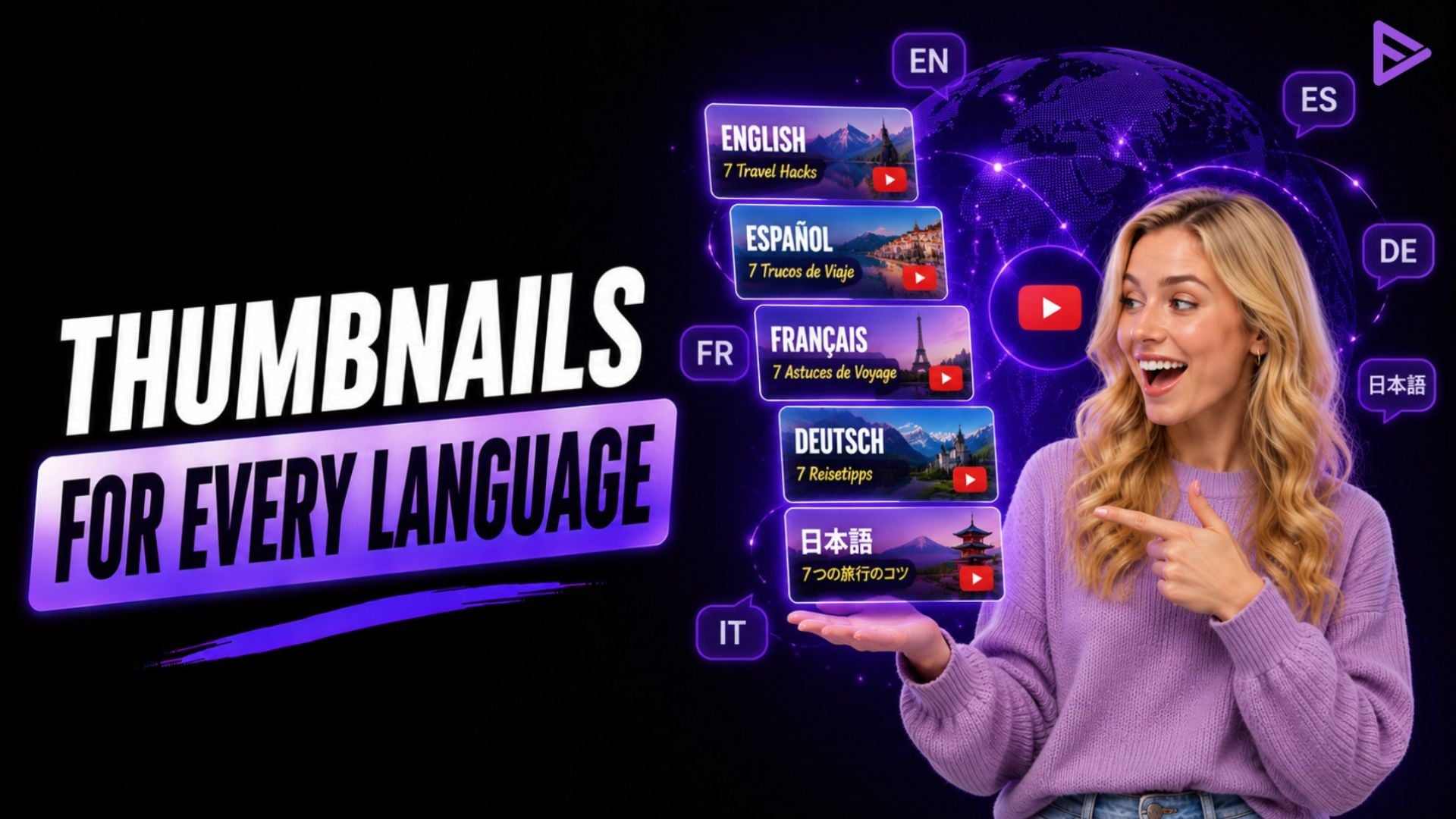
YouTube multilingual thumbnails let creators upload a localized thumbnail for each dubbed audio track on a video, and the platform automatically shows each viewer the version that matches their language setting. The feature only works on videos that already have multi-language audio added, and it rolled out broadly through late 2025 and into 2026 after a limited pilot.
What Are YouTube Multilingual Thumbnails?
Youtube multi language thumbnail is a separate image tied to one dubbed language track, so an English-speaking viewer, a Spanish-speaking viewer, and a Hindi-speaking viewer can each see a different thumbnail for the exact same upload. YouTube expanded its multi-language audio track capability in October 2025, and translated thumbnails followed as an extension of that same system rather than a standalone feature. Knowing which languages to prioritize starts with the same groundwork covered in our guide on identifying your YouTube audience.
How to Add Multilingual Thumbnails in YouTube Studio
You can add multilingual thumbnails through the Languages tab in YouTube Studio. First, add a dubbed audio track, then upload its localized thumbnail and save the changes for each available language. Detailed steps are:
- Add a dubbed audio track for the target language first, either through YouTube’s auto-dubbing tools or your own uploaded dub.
- Sign in to YouTube Studio on desktop and select Content from the left menu, then open the video.
- Click the Languages tab and find the language track you just added.
- Upload a localized thumbnail next to that language track, then save.
- Repeat for each additional language, YouTube automatically serves the matching thumbnail based on the viewer’s language setting.
Who Has Access to This Feature
Multilingual thumbnails are gated behind multi-language audio (MLA) access, not available to every channel by default.
|
Requirement |
Detail |
| Multi-language audio enabled | Required before a localized thumbnail can be added |
| Video type | Available for long-form videos with dubbed tracks |
| Access rollout | Expanding channel by channel through 2026, not universal yet |
| Where to check | YouTube Studio, Languages tab, next to each audio track |
Designing Thumbnails That Actually Work Per Language
A translated thumbnail only helps if the translation itself holds up and the visual choices make sense for that audience. The biggest CTR gains tend to go to channels where 30% or more of watch time already comes from non-primary-language viewers, which is a reasonable signal for deciding where to localize first.
- Have text translated by a native speaker or a localization tool, not a literal machine translation, since some languages run longer and need layout adjustments.
- Swap imagery that doesn’t carry the same meaning across cultures, a visual joke or gesture that lands in one market can fall flat in another.
- Keep your face, logo, or color palette consistent across every version so the channel still reads as the same creator.
- Compare the click-through rate for each localized thumbnail against the original once there’s enough data to judge it.
How To Measure If Localization Is Working For You
YouTube Analytics can isolate performance by audio language, which is the only reliable way to know if a translated thumbnail is pulling its weight.
- Open the Audience or Content tab in YouTube Analytics and filter by audio language to see views and watch time per track.
- Compare the click-through rate before and after adding a localized thumbnail for a specific language.
- Prioritize the languages already generating meaningful watch time over those with almost no viewers yet.
Final Thoughts
Localized thumbnails close a gap that dubbing alone never solved: the first thing a viewer sees still defaults to one language, no matter how well the audio was translated. Treat this as an extension of your existing dubbing work, not a separate project. Then let watch-time data decide which languages are worth the design effort rather than translating everything at once. Use platforms like VeeFly that can also help creators promote localized videos and reach a wider audience across different markets
Frequently Asked Questions
Q1. Does a multilingual thumbnail replace the need for translated titles and descriptions?
No. Localized thumbnails work alongside translated metadata, not instead of it. A translated title and description are what let a video surface in local search results in the first place.
Q2. Can I use multilingual thumbnails on Shorts?
The feature currently applies to long-form videos with dubbed audio tracks. Shorts aren’t part of the initial rollout.
Q3. What happens if I don’t add a localized thumbnail for a language I’ve dubbed?
Viewers in that language still see the original thumbnail by default. Adding a localized version is optional per language, not required once multi-language audio exists.
Q4. Is there a limit to how many localized thumbnails I can add per video?
The limit follows the number of audio language tracks on the video, one localized thumbnail per language track, so it scales with however many dubs you’ve added.
