


YouTube Keyboard Shortcuts: Key Takeaways
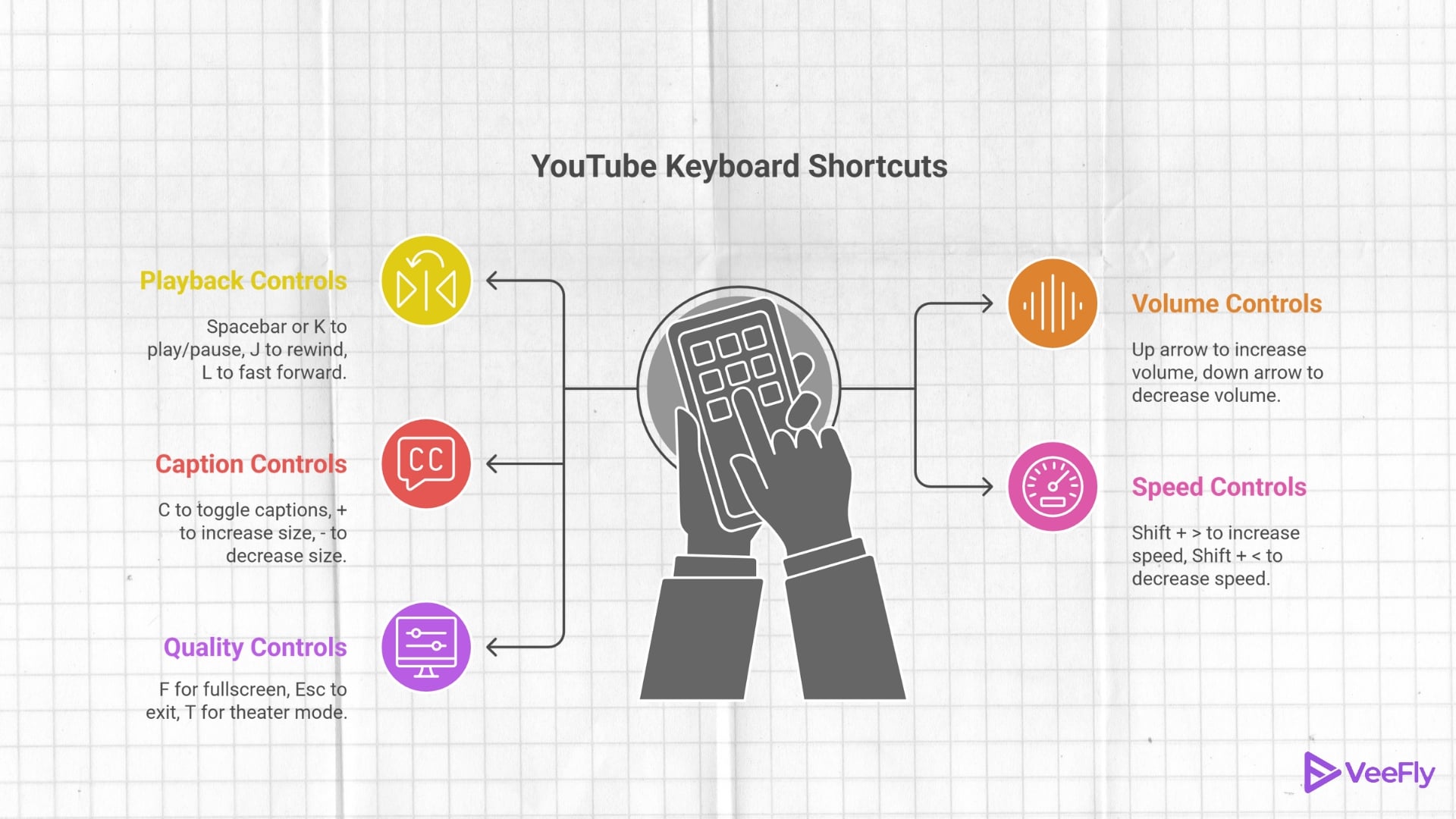
- Playback controls and navigation shortcuts include Play & Pause, Fast Forward, and Seek to Video Position.
- Audio shortcuts provide instant volume control, while captions and subtitles shortcuts support accessibility.
- Playback speed and video controls speed up the process, and Quality YouTube Shortcuts enhance the viewing experience.
- Keyboard Shortcuts cut down on mouse use and let you scrub footage to review and edit YouTube videos much faster.
Mastering YouTube keyboard shortcuts matters because it lets creators watch videos, review competitors, check captions, and jump around long videos without losing focus. Whether you’re editing tutorials, auditing Shorts, or monitoring retention points, keyboard shortcuts speed up every part of video production.
Similarly, with a few right shortcuts, your overall YouTube keyboard shortcut speed will improve as you spend less time in the player and more time making better content.
“Creators should build repeatable workflows that reduce friction so they can spend more time creating and less time on repetitive tasks.” – Rene Ritchie, Creator Liaison, YouTube.
Most creators know a few basic commands, but only a few take full advantage of YouTube video keyboard shortcuts, YouTube playback speed shortcuts, volume, and subtitle controls. Mastering these shortcuts creates a smoother editing experience and helps maintain a consistent publishing schedule, something every growing YouTube creator needs.
Why Are YouTube Keyboard Shortcuts Essential?
Every second in your workflow counts. Juggling uploads, editing, research, and monitoring analytics is essential. But the last thing you want is to waste time hunting for tiny buttons on the YouTube interface. In that case, your keyboard becomes your one-stop solution.
Keyboard shortcuts are especially useful when watching long videos such as tutorials, podcasts, interviews, and educational content. Creators no longer need to take their hands off the keyboard to reach for the mouse when they want to navigate the timeline, adjust playback and audio, or view other parts of a video.
Creators who move entirely on the keyboard don’t just act faster, but think quicker too; your entire workflow is on one device. Since speed equals output, the more you streamline your actions, the more energy you preserve for what actually matters: producing content.
If you are checking out competitors, you can combine playback controls with the YouTube speed-up shortcut for a truly marginal productivity gain. It lets you fast-forward through long intros, repeated explanations, and slower sections while you look at the storytelling, editing style, and how well the audience is hooked.
25 YouTube Keyboard Shortcuts for Faster Workflow
Even though YouTube has a simple interface, there are several tasks you, as a creator, have to go through. These shortcuts come in handy whether you’re uploading your own videos, researching competitors, watching tutorials, or getting videos ready to post. Once you know them, they can save you hours over a month.
Here’s a list of reliable navigation keys that will help avoid all the micro-delays:
Playback Controls & Navigation
Constant play-and-pause can be exhausting and may even wear out your cursor or mouse. The fastest way to move through your timeline is with YouTube shortcut keys. Playback controls let you review footage faster, jump between chapters, and rewatch specific scenes.
For YouTubers, these shortcuts also come in handy when checking audience retention, watching editing transitions, checking chapter timestamps, analysing competitor videos, or even watching tutorials before posting your own work.
1. Play & Pause – Space bar or Letter K
2. Rewind – Letter J to rewind 10 seconds under YouTube keyboard commands
3. Fast Forward – Letter L to move forward by 10 seconds
4. Next Video – Shift bar + Letter N
5. Previous Video – Shift bar + Letter P
6. Seek to Video Position – Number keys from 0-9. This helps you jump to a particular section of the video. For instance, Number Key 0 goes to the beginning of the video, Number Key 1 goes to 10% of the video, and so on.
When reviewing long tutorials or podcasts, the combination of navigation keys and YouTube keyboard shortcuts for playback speed controls lets creators find important sections much faster than manual scrubbing.
Volume & Audio Shortcuts
Audio management should never slow down a creator; volume and audio shortcuts help with instant control. They help with live streams and detailed audio reviews.
7. Volume Up – Arrow Up increases volume by 5% under the YouTube shortcut keyboard
8. Volume Down – Arrow Down decreases volume by 5%
9. Mute & Unmute – Letter M
10. System Volume – Media Keys for monitoring sound levels
Captions & Subtitles
Correct captions also enable search engines to better interpret your videos’ content, making them easier to find in YouTube Search and AI-powered search experiences.
To improve accessibility and clarity, you can add captions and subtitle timings without disrupting your workflow.
11. Toggle Captions – Letter C to switch subtitles on and off
12. Increase Subtitle Size – Press + (Plus)
13. Decrease Subtitle Size – Press – (Dash)
14. Change Subtitle Background Opacity – Letter O
15. Toggle Caption Style – Shift + Settings
Many creators also proofread captions before publishing, ensuring names, technical terms, and keywords are spelt correctly and improving both the viewing experience and accessibility.
Playback Speed & Video Control
As a creator, you might want to slow down tutorials, analyze movements, or speed through repetitive clips.
16. Increase Speed – Shift + > to double the speed
17. Decrease Speed – Shift + < To analyze transitions slowly
18. Reset Speed – Number Key 0 in speed menu
19. Loop Video – Shift + Letter L, helping you with the best video transitions.
If you’re editing long videos, the shortcut to increase speed in YouTube helps you through tedious footage at a pace that still captures editing mistakes, subtitle errors, and pacing issues. Competitor-analysing creators also swear by a shortcut to speed up YouTube analysis of thumbnails, hooks, storytelling, and audience retention techniques, without wasting hours watching videos the “proper” way.
When your video is ready, you can then use < a href= “https://veefly.com/youtube-tools/”>VeeFly’s free YouTube Creator Tools</a> to analyse video tags, create AI-powered summaries, find keywords, and optimise metadata for publishing.
Quality YouTube Shortcuts
Video quality is essential for instant control over how your video appears to viewers. From visual quality and compression to thumbnails and colour grading, every detail matters.
20. Fullscreen – Letter F for reviewing colour accuracy and final visuals
21. Exit Fullscreen – Esc Bar
22. Theatre Mode – Letter T
23. Mini Player – Letter I
24. Quality Settings – Shift + Open Settings Menu
25. CTRL +F4 – Important to close the current tab for a better view under YouTube shortcut keys
Creators should preview every upload in full screen, Theatre Mode, and Mini Player, because viewers use YouTube on phones, desktops, tablets, and TVs Testing various viewing modes helps ensure thumbnails, captions, and graphics are clear on all screens.
According to YouTube, viewers now watch more than 1 billion hours of YouTube content on TVs every day, making efficient review workflows increasingly important for creators producing long-form content.
Final Thoughts
YouTube keyboard shortcuts aren’t just a few clever tricks; they are a productive hack that gives a clear competitive advantage. Creators who train their fingers to navigate the platform directly become faster thinkers and ultimately accelerate their YouTube audience growth. Use them daily to have a much smoother workflow.
If you’re doing competitor research, reviewing edits, reviewing captions, or watching long-form content, knowing these shortcuts can save you time and keep you in the creative flow. Minor daily enhancements to your routine can add up to noticeable changes in your publishing consistency and channel-wide growth. You can also use the VeeFly YouTube Creator Tools to analyse video tags, discover relevant keywords, generate AI-powered summaries, and optimise your metadata for better video performance.
Frequently Asked Questions
Q1. What Are All the YouTube Keyboard Shortcuts?
YouTube offers a wide range of keyboard shortcuts for navigation. However, most creators use around 25-30 keyboard shortcuts.
Q2. What Are the 20 Keyboard Shortcuts?
There are 20 essential YouTube keyboard shortcuts, including play, pause, rewind, fast forward, and skip.
Q3. How to Enable Keyboard Shortcuts in YouTube?
YouTube keyboard shortcuts are enabled by default. Simply click the video player to ensure it’s in focus, then use the keys.
Q4. What is CTRL +F4 Used For?
CTRL +F4 is a YouTube shortcut that closes the current tab, window, or document in many apps.
Q5. What Is the YouTube Skip Ad Keyboard Shortcut?
The YouTube skip ad keyboard shortcut is typically Tab + Enter.