


Key Takeaways:
- The simplest native way to publish a pre-recorded live-stream YouTube video is to use YouTube Premieres.
- Pre-recorded videos can stream 24/7 for consistent channel watch time.
- Pre-recorded streams combine the best of both worlds: professionally edited streams and live community interaction.
You have two options for airing pre-recorded live stream YouTube broadcasts: the “Set as Premiere” option during upload, or a live stream key to stream pre-recorded video files through software such as OBS Studio. Either way, the creators can communicate with viewers in live chat without any performance issues.
What is a Pre-Recorded Live Stream?
A pre-recorded live stream YouTube broadcast is a video that is created, edited, and rendered beforehand and then played live on YouTube at a specific time. It mimics a real event, letting creators interact with viewers as they watch and receive real-time chat feedback while still delivering a polished, pre-edited video experience.
How to set up a Pre-Recorded Live Stream on YouTube?
To create a pre-recorded live stream YouTube premiere, you must upload your video to YouTube Studio, add the metadata, choose the “Public” visibility setting, and then tick the box for “Set as Premiere” under the schedule menu. This will broadcast the video live and include an interactive, real-time chat room.
To set the video as a premiere, follow these steps.
First, I’ll list all the steps, then explain each one in detail and why it matters.
1. Go to YouTube, click on the channel icon, and tap on YouTube Studio.
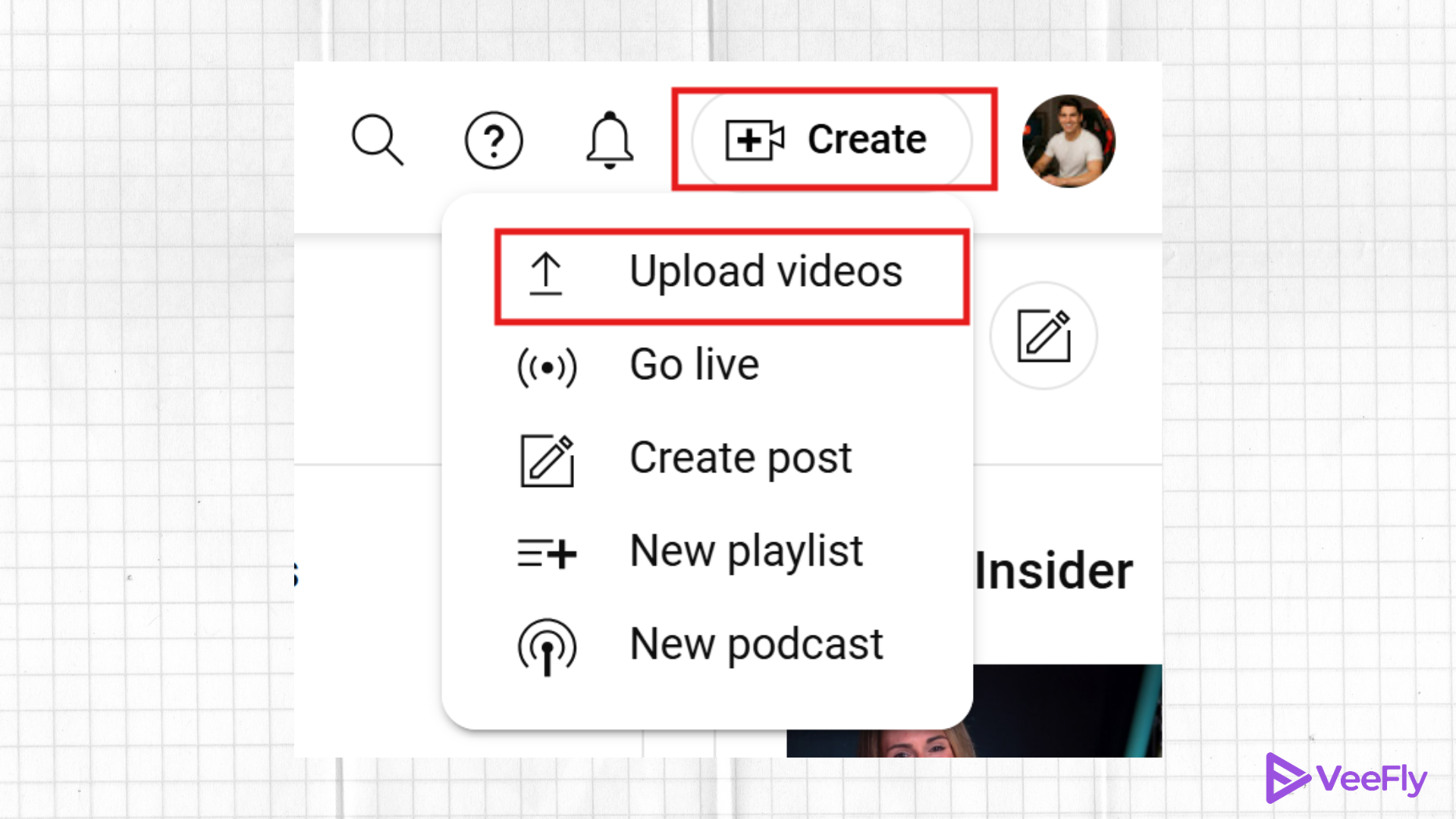
2. In the top right corner, you will see the “Create” button; click on it.
3. From the options, select “Upload Videos”
4. Drag or browse your video to upload.
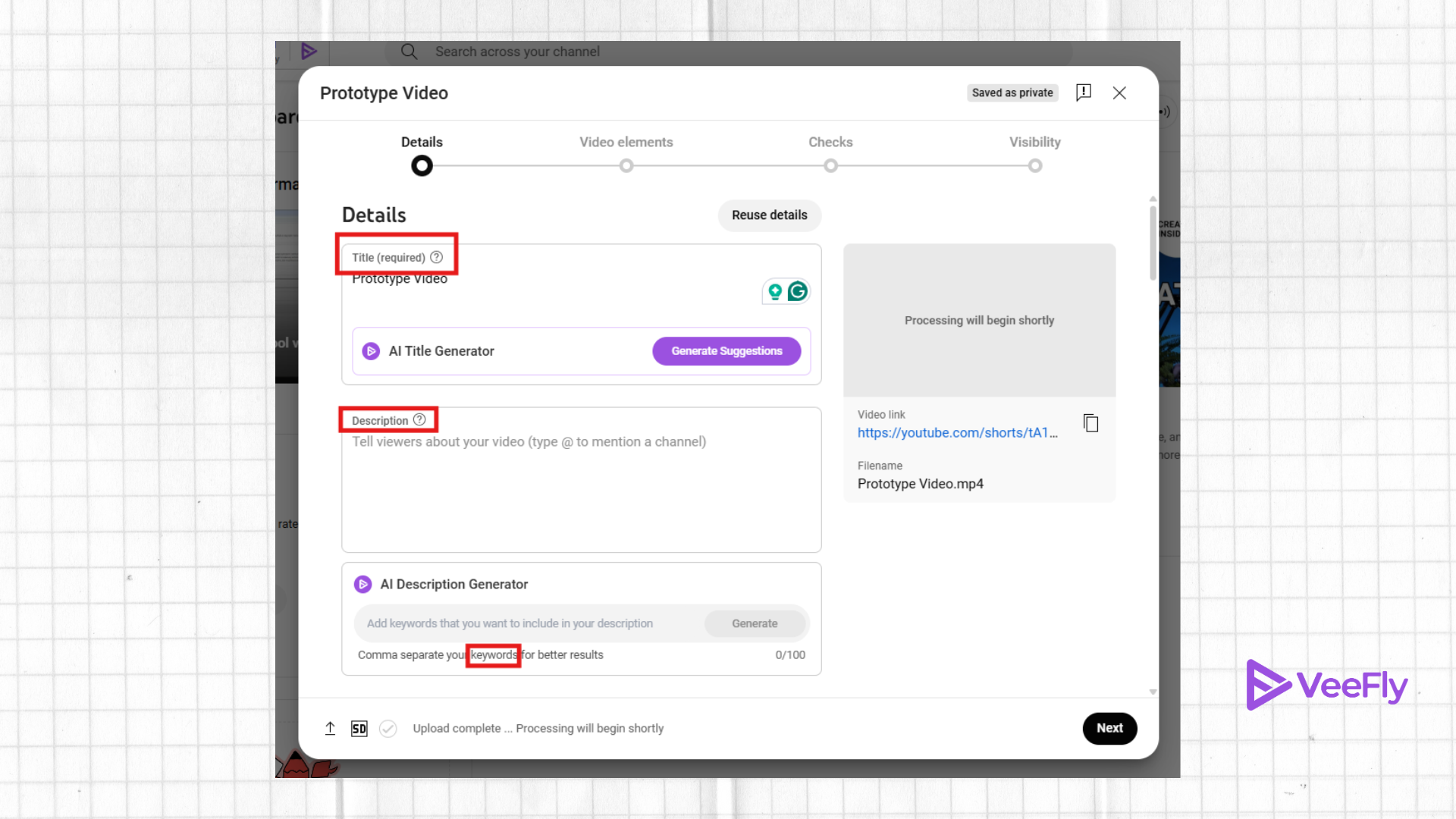
5. In the details section, write the title, description, keywords, Thumbnails, and add to the playlist if it belongs.
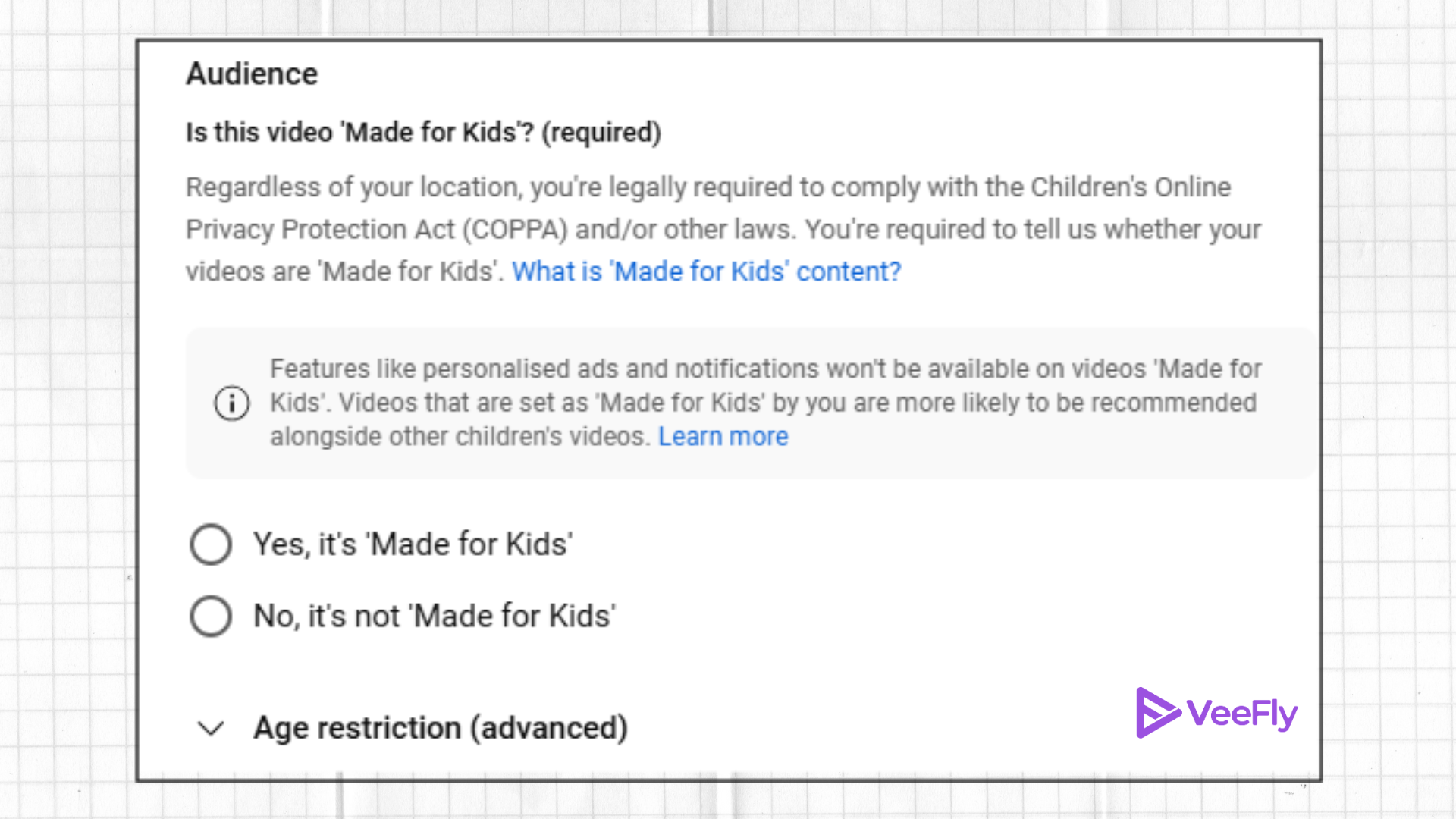
6. Choose Audience, whether it is made for kids or not.
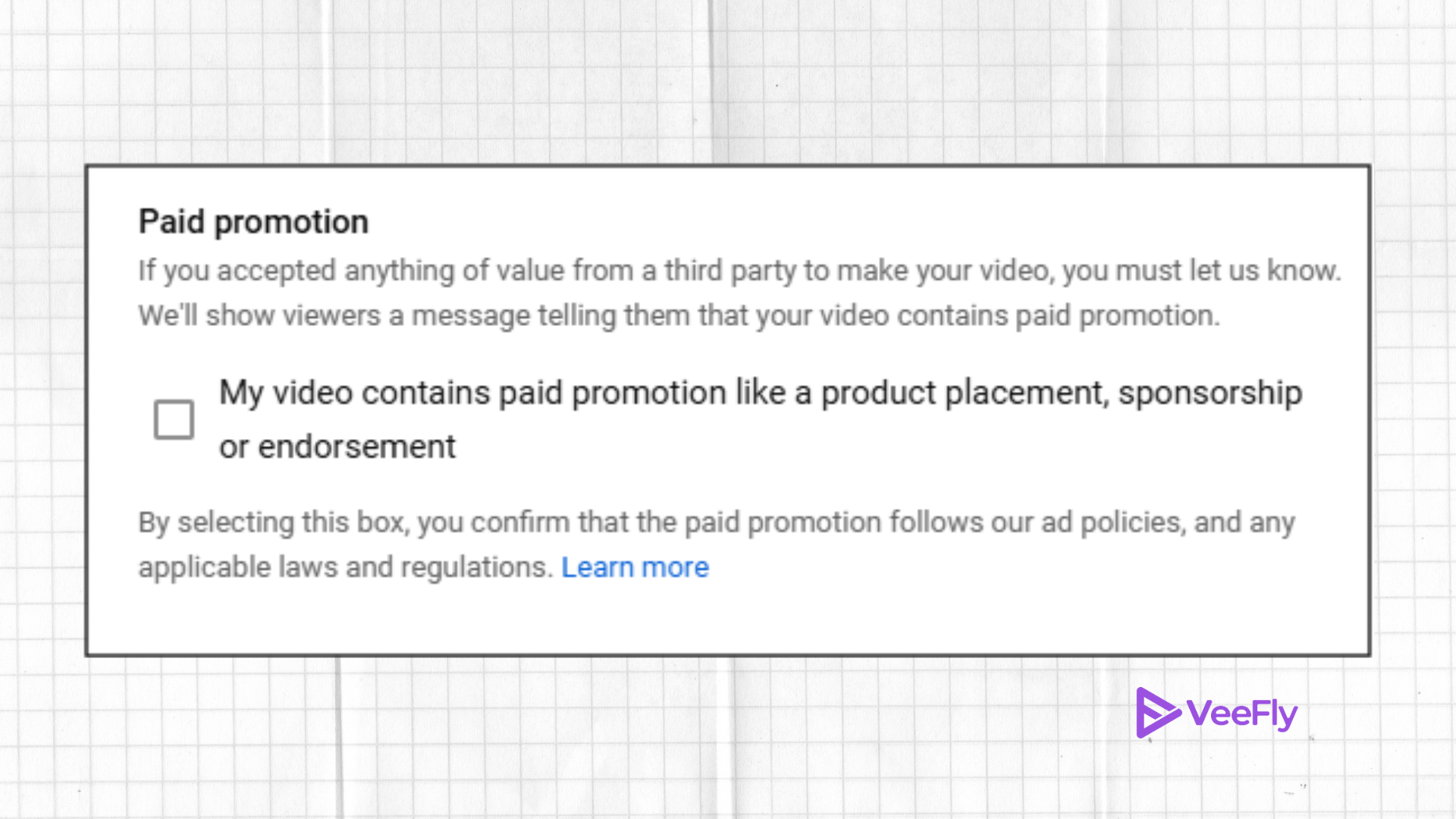
7. If the video is a paid promotion, check the box.
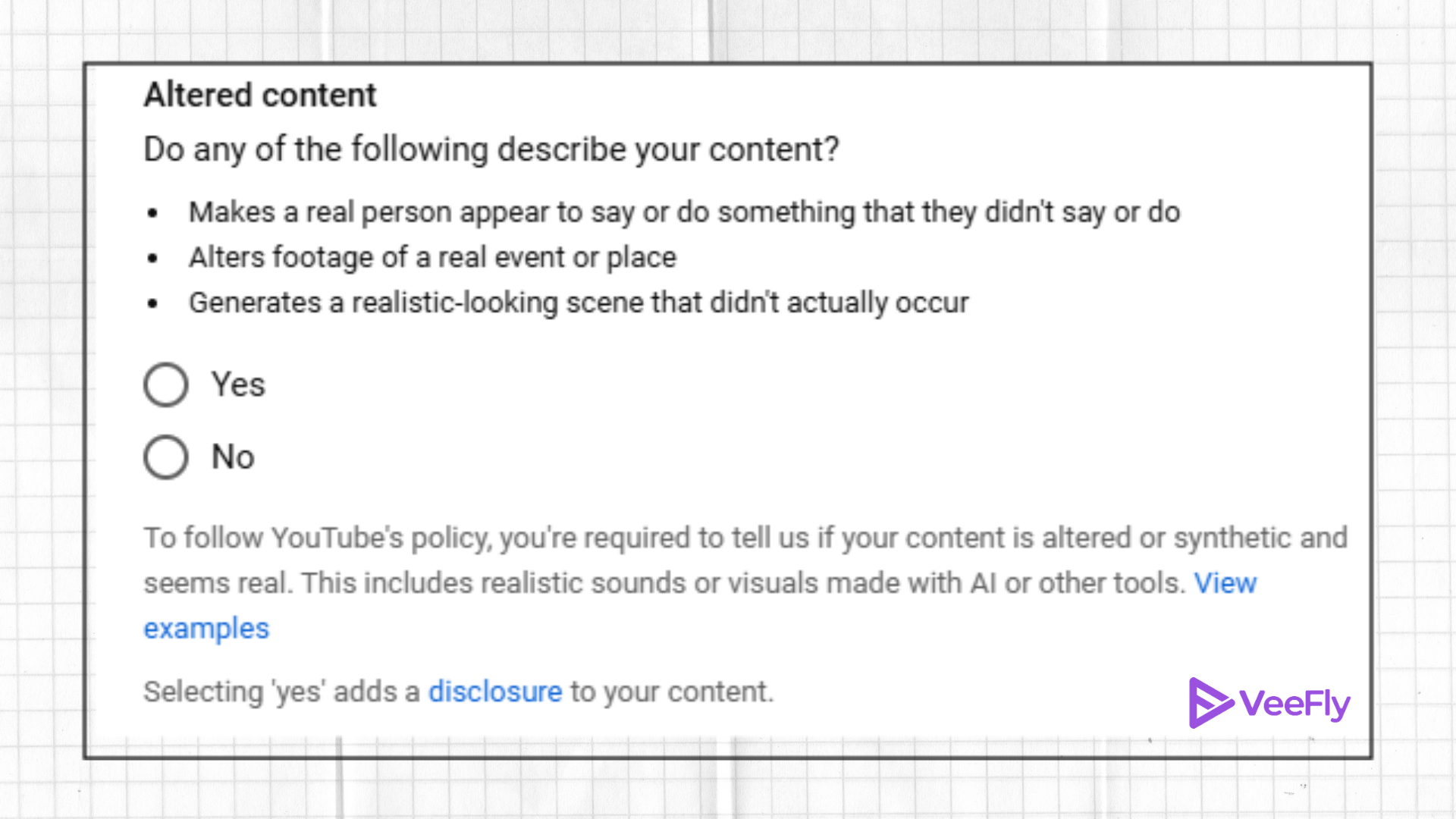
8. Choose yes/no if the content is altered.
9. Add chapters
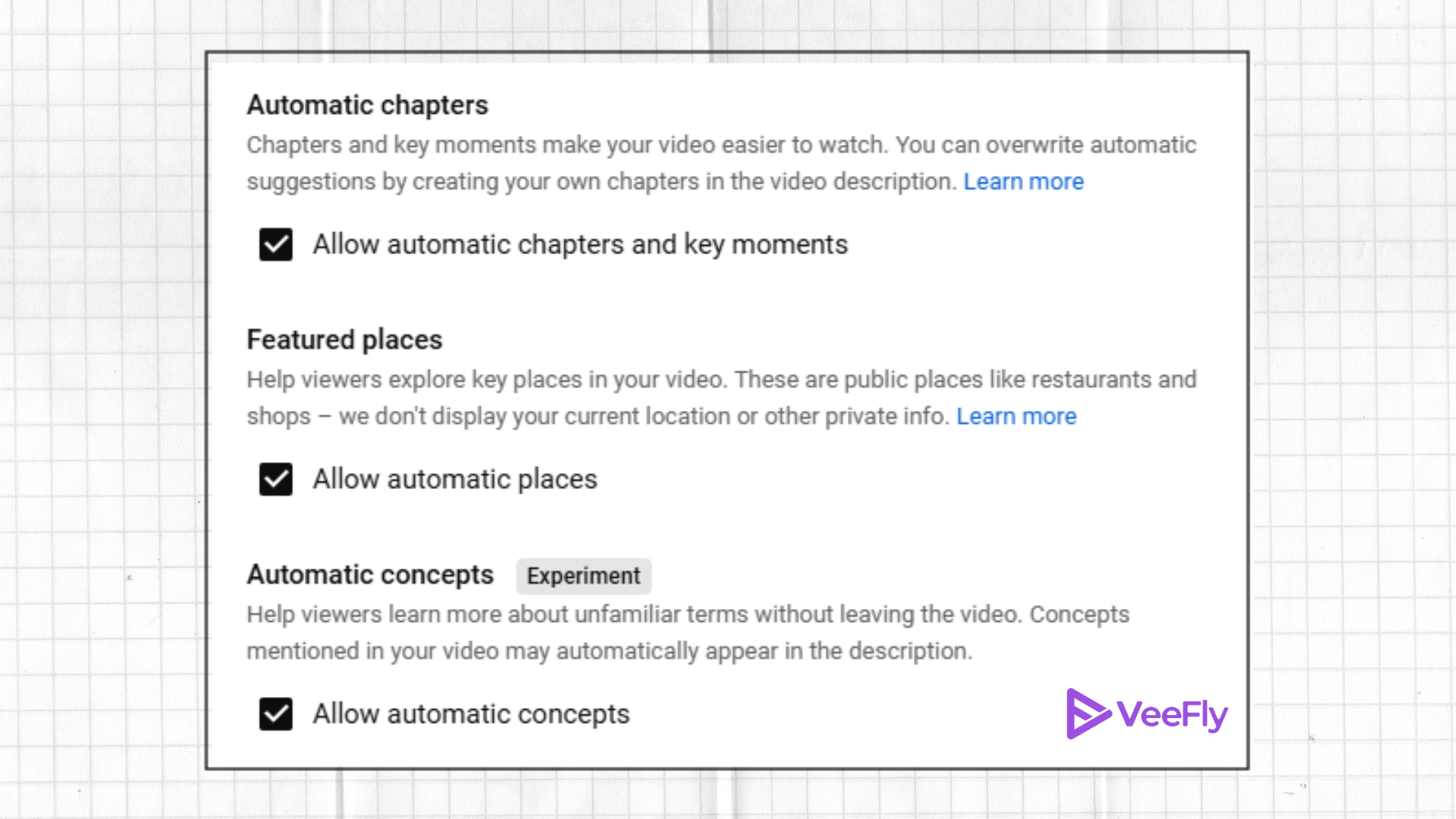
10. Check the box for the automatic places and automatic concepts YouTube feature.
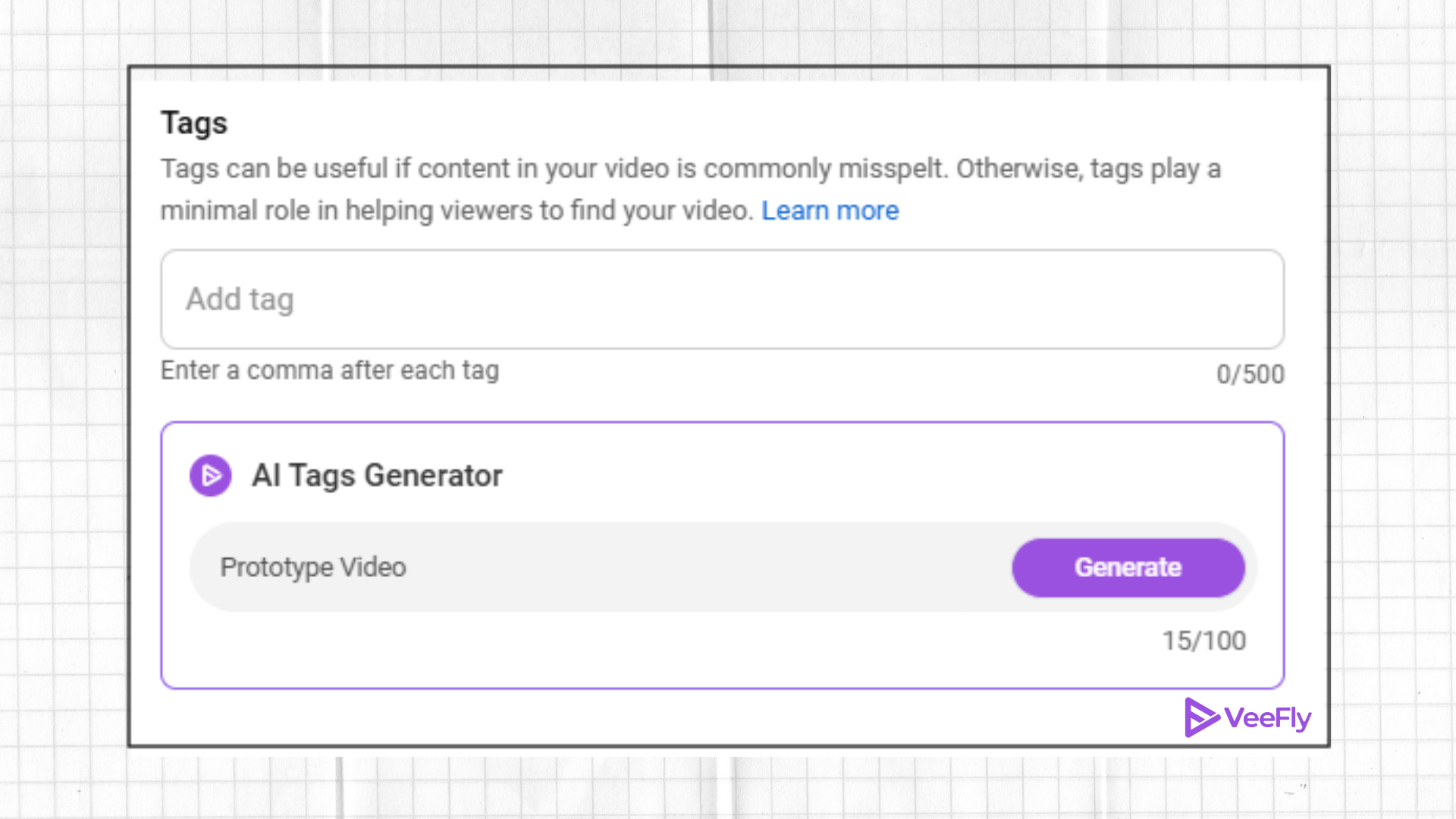
11. Add Tags
12. Complete the language and captions certification section
13. Add licenses if any
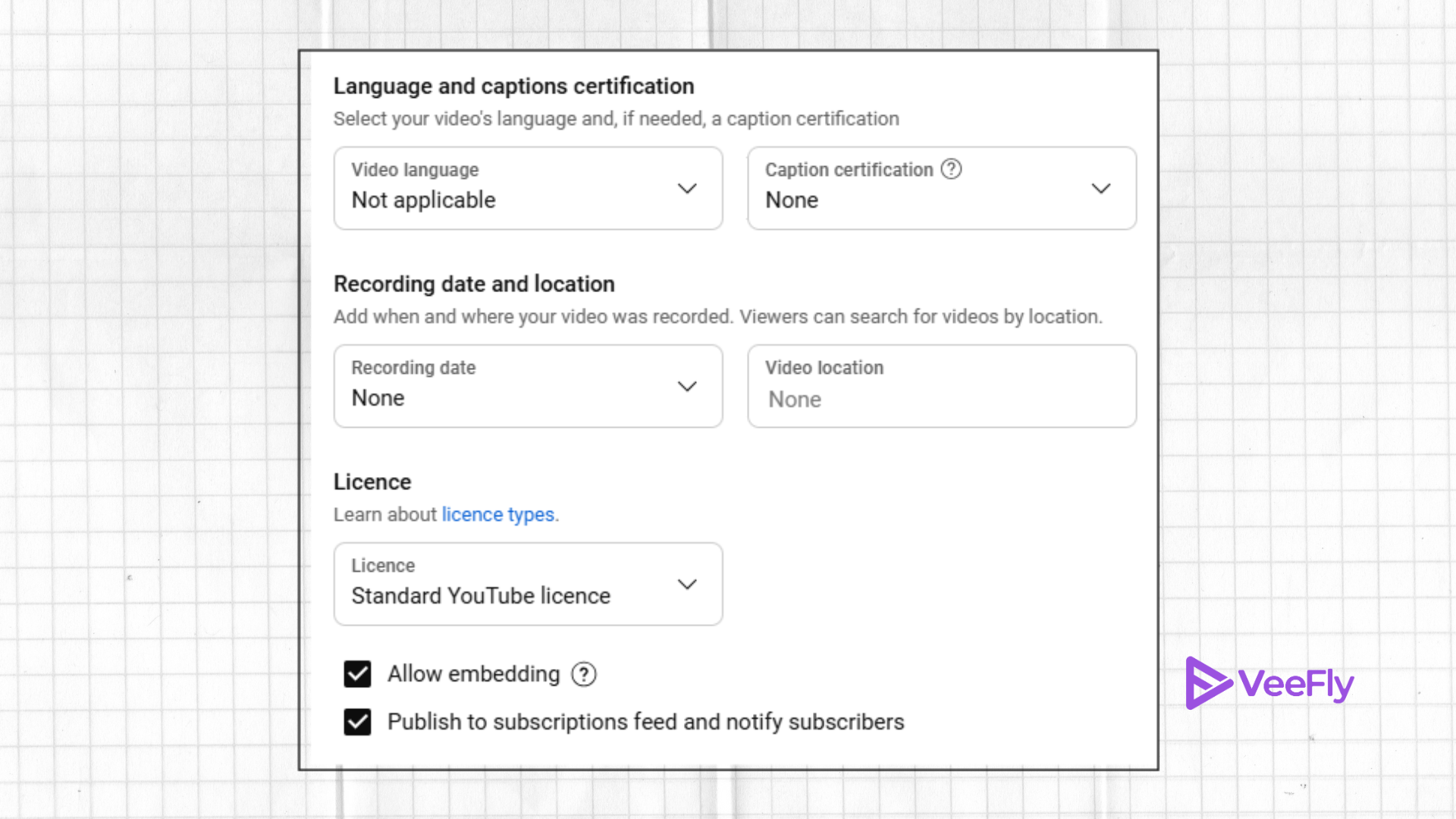
14. Choose Shorts remixing
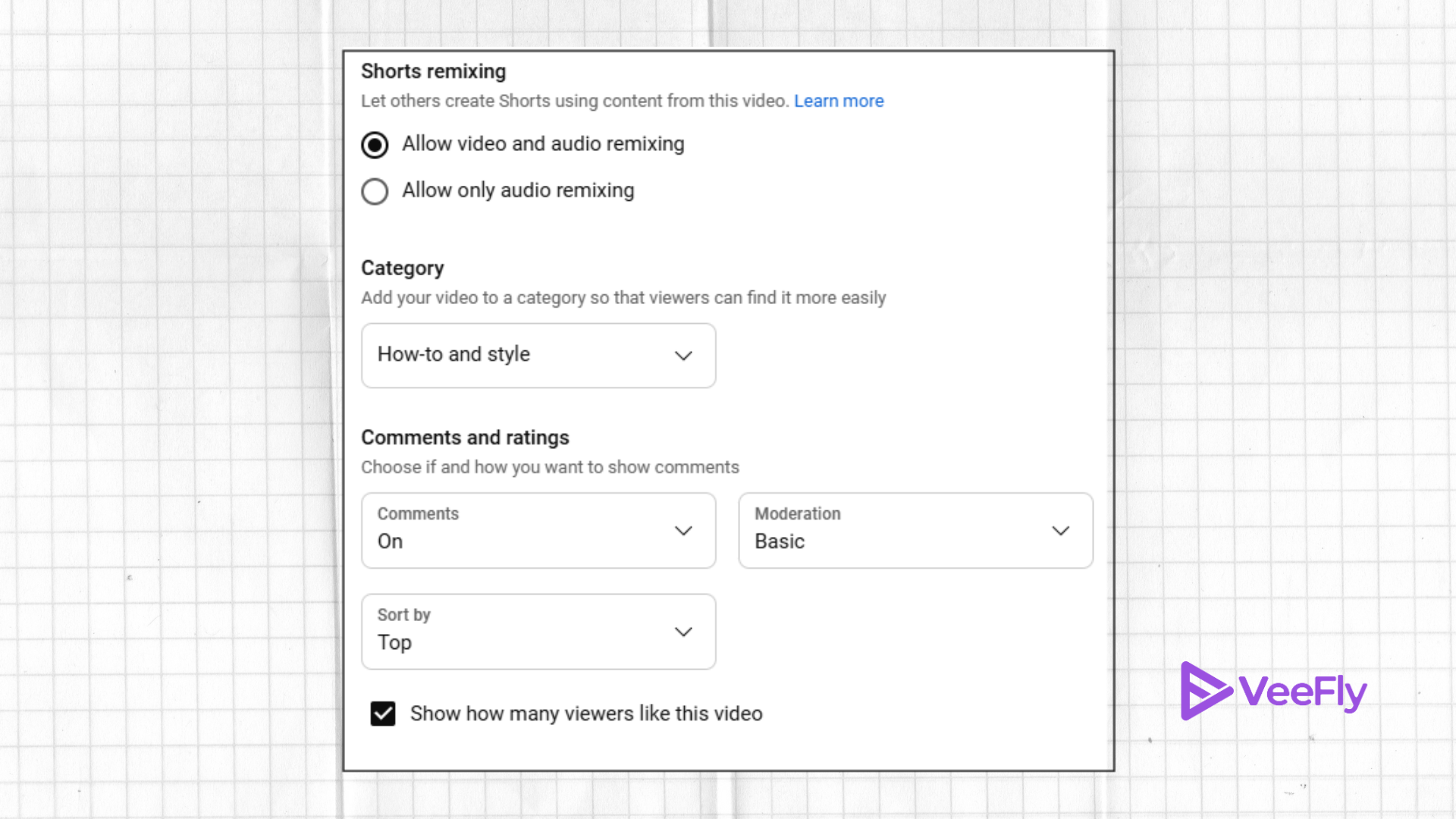
15. Choose category
16. Complete comments and ratings
Click Next, and you will land on the Video Elements tab
17. Add related Video.
18. Add Subtitles
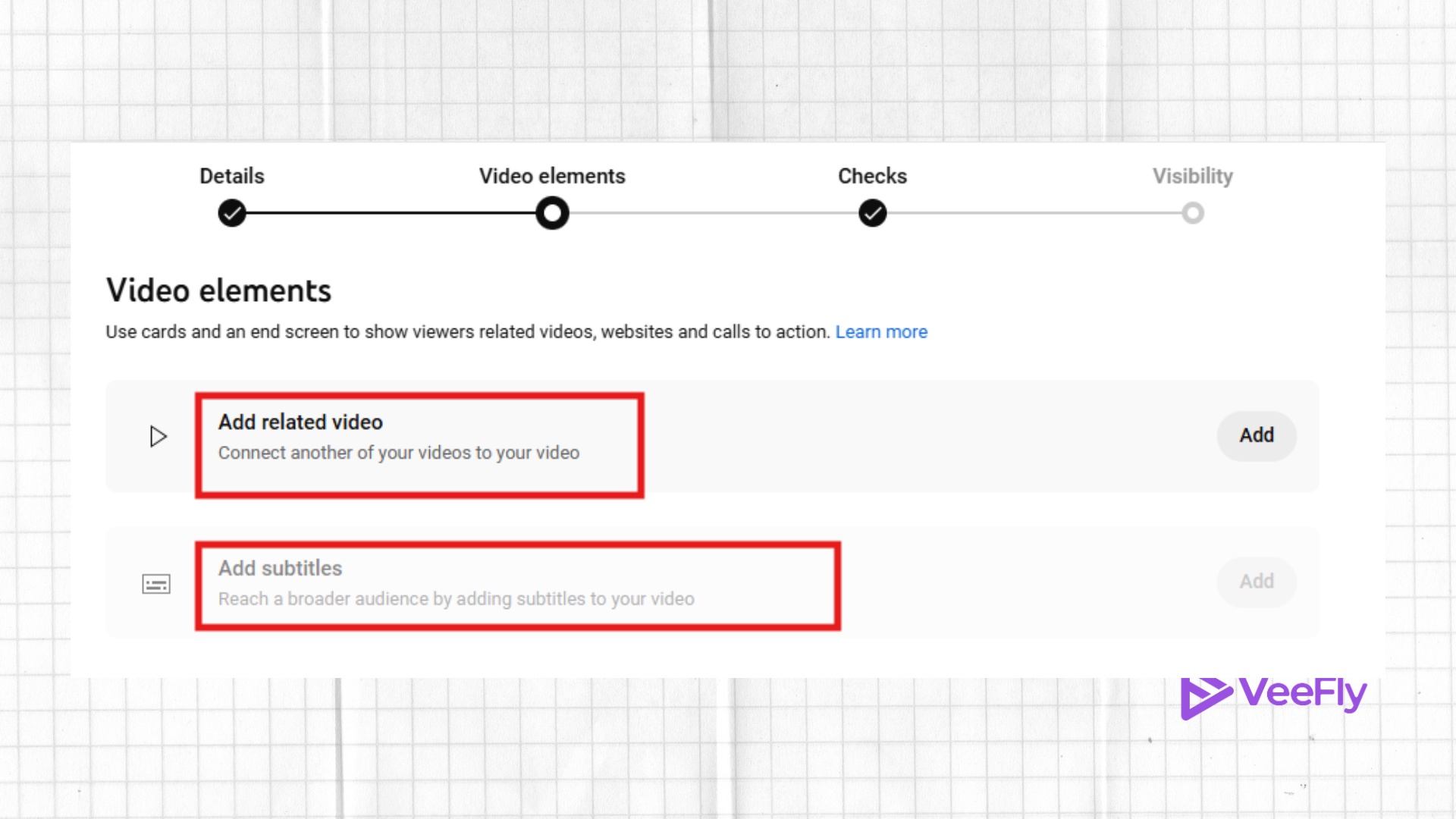
The next tab will do the copyright checks. If it approves, you can jump onto the Visibility tab.
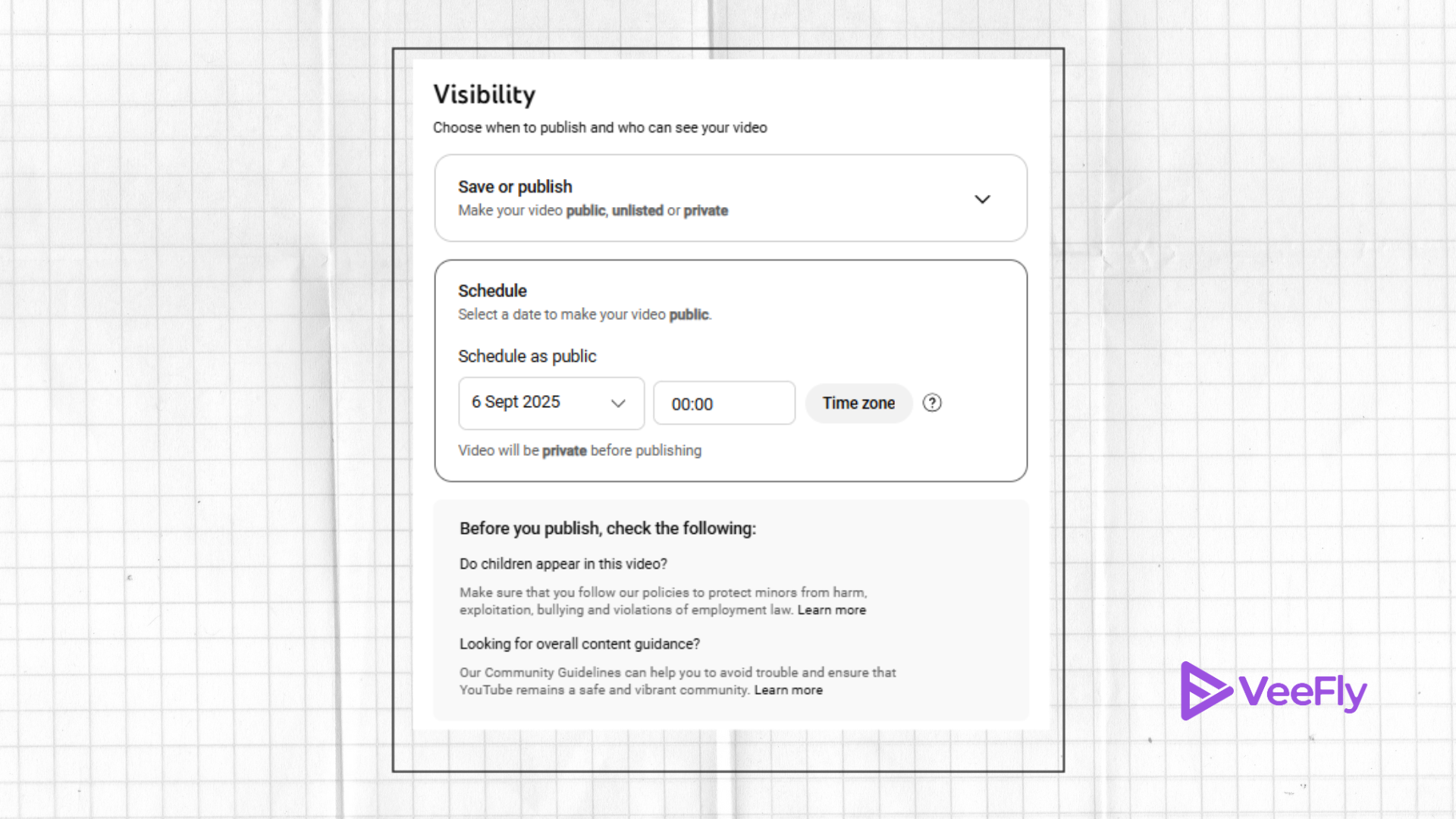
19. Choose Public from (Private, Unlisted, Public) to do a pre-recorded live stream.
20. Schedule the video by selecting the date, duration, and time zone.
21. Keep the “Set as Premiere” option
22. Click on the “Schedule” button.
Let’s understand the terminology of pre-recorded live stream steps.
Some steps may be new or complex, so I’ll explain them in an easy way.
Once you add the Title, Description and Thumbnail. Select the playlist that the video belongs to. If it’s a sole video, leave it as it is.
In the audience segment, you must select whether it is made for kids or not. In the advanced tab, you can also set the audience to 18+ only.
Also, check the box if your video contains a paid promotion.
Additionally, there is a checkbox to tell YouTube if the video is altered. Altered content means someone appears in the video and says something they didn’t say in real life. Or the video footage is altered or adds a scene that didn’t actually occur. You must mark all of this to follow YouTube guidelines.
You can mark the automatic chapters box, or manually add chapters.
If Featured places are locations that you have visited in the video. The viewers will not see your location. But they can see key locations such as shops and restaurants.
The automatic concepts allow users to learn unfamiliar terms without leaving the video. The terms or concepts mentioned in the video automatically appear in the description.
You can also add the language of the video for better YouTube localization and caption certification. The audience can search a video by location if you add recording date and video location.
Add a license if you own the content. You can also grant users permission to embed the content. Additionally, use can let others create Shorts using content from your video.
Lastly, add standard terminology, categories, comments, and ratings features. Add relevant videos that will appear at the end of the video or in suggestions.
Keep the video public, schedule the post as “Set as premiere,” and click Schedule post. The pre-recorded live stream on YouTube will be available at that time.
Why Do You Need a Pre-Recorded Live Stream on YouTube?
Creators use a pre-recorded live stream YouTube strategy that combines the benefits of high production value with live audience engagement. By avoiding live technical issues, creators can focus 100% on live chat moderation, community engagement, and strategically planning broadcast times to maximise viewership worldwide.
Let’s take a look at the difference between a YouTube pre-recorded live stream and a regular live stream:
| Feature | Pre Recorded Live Stream YouTube | Standard Live Stream |
| Production Risk | Zero (fully edited & polished) | High (potential tech/audio errors) |
| Creator Focus | The live chat is the sole focus of this 100% dedicated website. | Distribute hosting & chat. |
| Scheduling | Flexible, target peak timezones | Must be performed by the creator in person |
| Reusability | Looping 24/7 with ease through software. | Make every effort to re-broadcast. |
Final Thoughts
By presenting a pre-recorded live stream YouTube to your audience, you provide a quality experience. Pre-recording also lets you edit out irrelevant parts of the video. This saves the audience time by removing unnecessary distractions, such as noise or unclear audio. In the article, we cover detailed steps to set up a pre-recorded video to schedule as a YouTube live.
Frequently Asked Questions
Q1. Can I live-stream a pre-recorded video on YouTube?
You can schedule a video to live by selecting “Set as premiere” when publishing. Also, you use streaming software to do a pre-recorded live stream.
Q2. What is a pre-recorded live stream?
A pre-recorded live stream is like broadcasting a video, at a scheduled time, to create a live event using YouTube or streaming software.
Q3. How to set up a 24/7 pre-recorded live stream video on YouTube?
There are two methods: manual and cloud-based. First, use software like OBS Studio to arrange files, and then add the YouTube stream key in the software to loop continuously. Then, the second is cloud-based automation for continuously streaming videos.
Q4. Can a YouTube live stream be recorded?
Yes, YouTube allows you to add archived videos that are less than 12 hours old. YouTube also archives files in resolutions ranging from 144p to 1080p.
Q5. What is the difference between live and pre-recorded?
Live streams are a real-time interaction that is raw, spontaneous, and without retakes. On the other hand, pre-recorded live videos are edited before streaming.